A scanned contract at 30+ MB hits email's 20 MB cap and WeChat's file limits—and re-scanning is a pain. The root cause isn't "too many pages" but that scanned PDFs are essentially a stack of high-resolution images. Once you see that, you know what to compress, how small you can go, and when compression is pointless.
Why Are Scanned PDFs So Big?
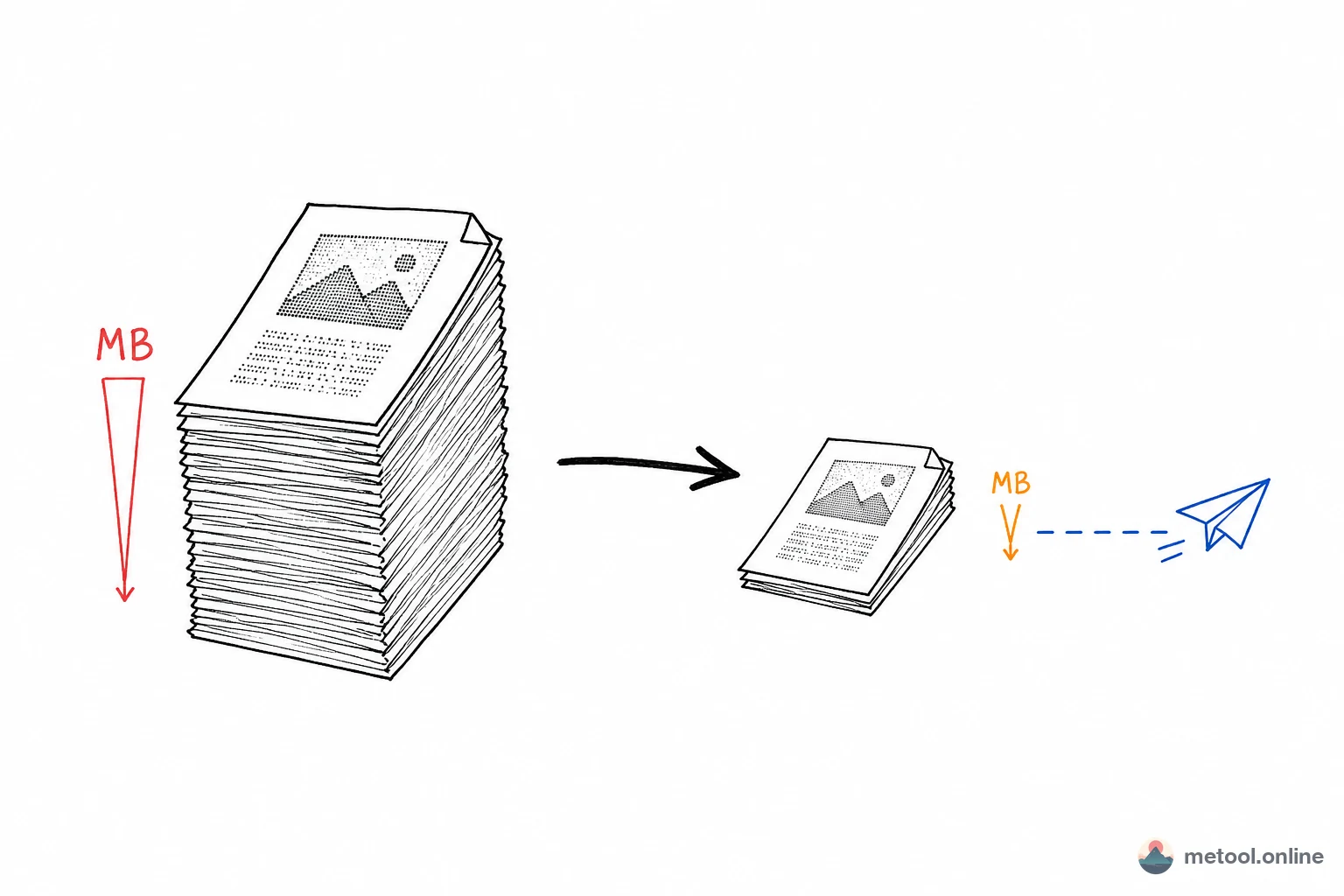
Because scanned PDFs store a bitmap photo per page, not text. A scanner or phone captures the paper as an image and puts it in a PDF container—so size is driven by resolution and color depth, not word count. A blank page and a dense contract scan to roughly the same size.
The math is straightforward: one A4 page at 300 DPI color scan is about 2480×3508 pixels—nearly 25 MB uncompressed. Even with basic JPEG compression from the scanner, a single page is often 1–3 MB; a dozen pages easily reach tens of MB. That's unlike Word-exported PDFs, which store text and vectors—a 50-page report may be only a few hundred KB.
So the first step is telling text-based from image/scanned PDFs. The former has little room to shrink; the latter is where compression pays off.
What Does PDF Compression Actually Do?
PDF compression mainly does two things: remove redundant structure and re-encode images. For scans, the second step is what saves volume.
- Lossless optimization: cleans duplicate objects, unused resources, and redundant metadata—tightens internal structure without changing any pixels. For pure-image PDFs, this saves little.
- Image re-encoding: resamples page bitmaps to a target resolution, then compresses with a lossy codec like JPEG. That's how a 30 MB scan can drop to a few MB—halving resolution roughly quarters the data.
A solid approach is two-stage compression: lossless cleanup first, then per-page image re-encoding. That avoids blindly destroying quality while getting most gains from the image layer. The PDF compression tool follows this pattern—scanned and image PDFs often shrink to 10%–30% of the original.
How Small Can You Go Without Blurring? Picking Resolution
Key takeaway first: 150–200 DPI is enough for screen reading and normal printing; below 100 DPI, blur becomes obvious. Match resolution to use:
| Use case | Suggested resolution | Notes |
|---|---|---|
| WeChat/email, screen viewing | 120–150 DPI | Smallest size; clear on screen |
| Normal print, archiving | 200–300 DPI | Sharp print, moderate size |
| OCR or zooming into detail | ≥300 DPI | Avoid heavy compression; preserve fidelity |
In practice, dropping a 300 DPI color scan to 150 DPI with moderate JPEG often cuts size to about 1/5 of the original—barely noticeable on phones and laptops. Black-and-white text scans can also be grayscale for extra savings.
Still Too Big After Compression?
If tuning resolution still exceeds the recipient's limit, try splitting or converting:
- Too many pages: use the PDF split/merge tool to split by page range and send several smaller files.
- They only need to view, not keep PDF: use PDF to images to export needed pages as JPG—often smaller and easier to open.
- The scan was already blurry: low resolution at capture can't be fixed by compression—re-scan instead.
When Compression Won't Help
Compression isn't universal. These cases yield little or nothing:
- Text/vector PDFs: Word/web exports are already small with no large images—maybe a few percent smaller.
- Already compressed once: re-compressing degrades quality further with minimal size gain.
- Heavy vector graphics/tables: already efficiently encoded; image resampling doesn't apply.
Simple rule: big PDFs are almost always image-based—compress those; small text PDFs aren't worth the effort.
Summary
Scanned PDFs are large because they're stacks of high-resolution images—size follows resolution and color depth, not word count. Compression means lossless cleanup first, then resample images to 150–200 DPI for your use case and re-encode—screen viewing often reaches 10%–30% of original size with little visible loss. When that fails, try splitting or converting to images; pure text PDFs are already small. Processing runs locally in the browser—contracts and ID scans never need to be uploaded.