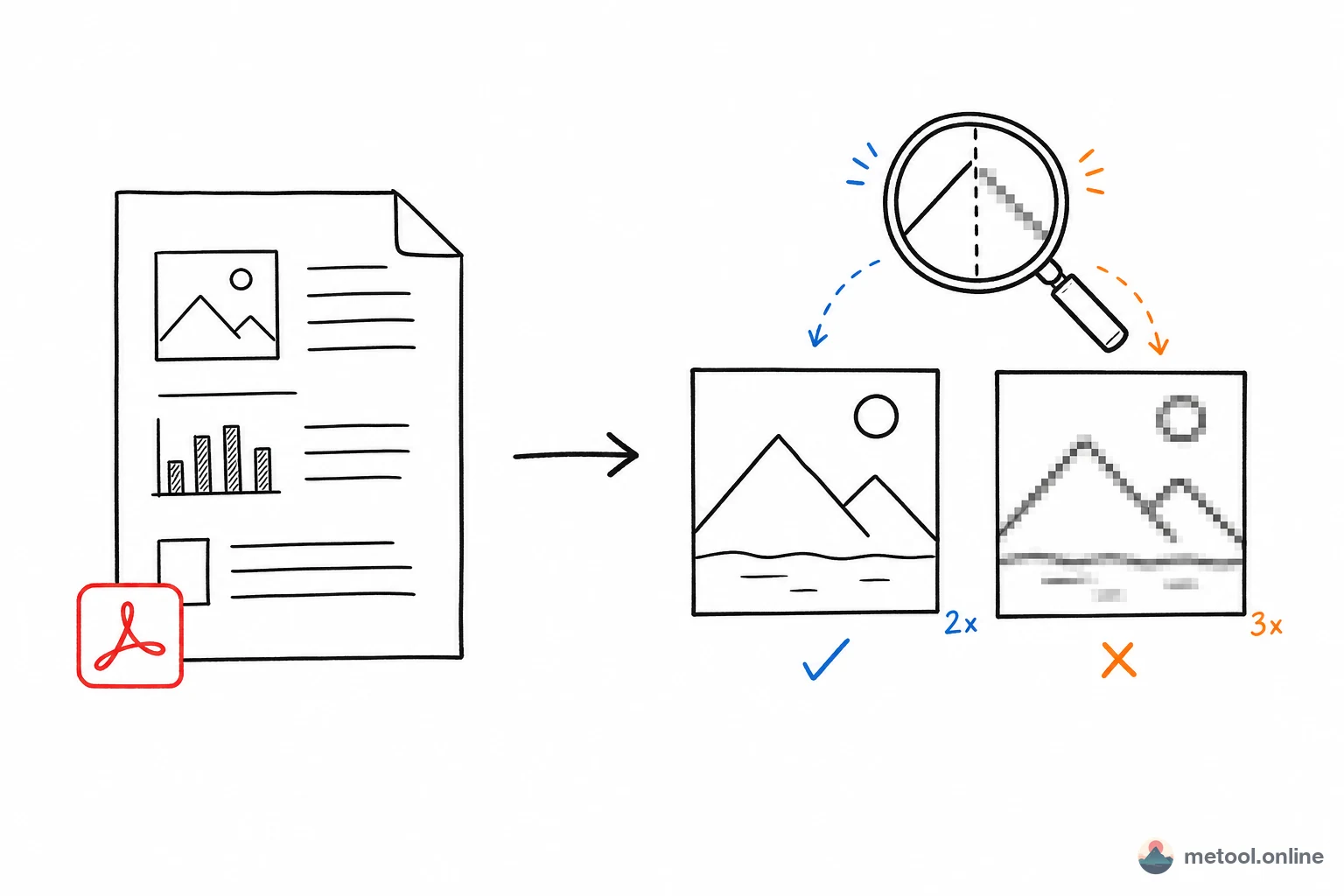
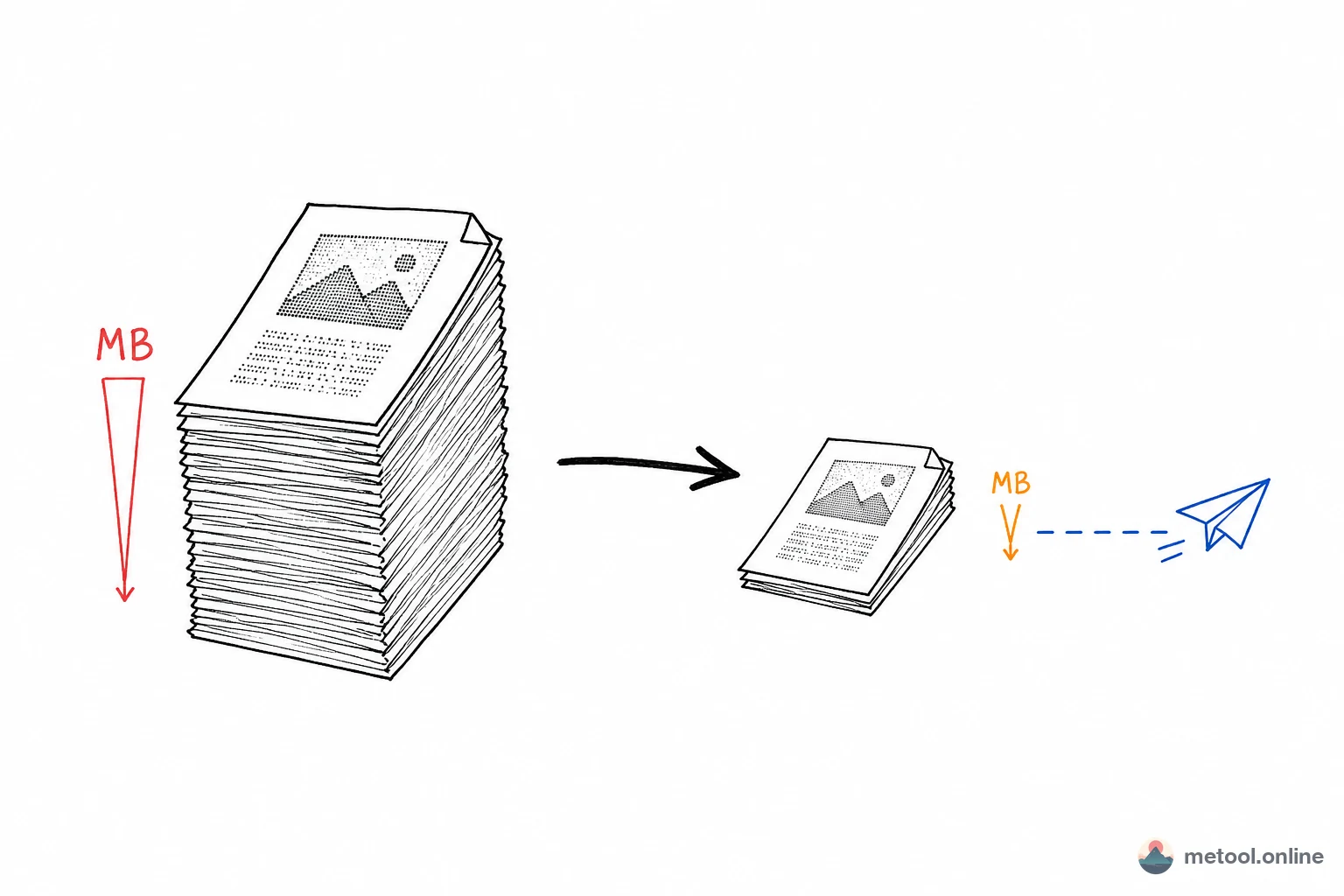
Why Convert PDF to Images?
PDF is the industry standard for document sharing, but images are often more practical: sharing PDF content on social media is easier as an image than as a file link; annotating, cropping, or redesigning a PDF page is simpler when it's an image; and embedding PDF pages into video or PowerPoint requires an image format.
MeTool's PDF to image converter parses and renders PDFs directly in your browser — no software to install, no files to upload, and your document stays private.
Key Features of MeTool PDF to Image
Multiple Render Resolutions
Choose from Standard (1×), High-res (2×), and Ultra-HD (3×) render scales. Standard works for general preview; High-res and Ultra-HD meet print-quality or detail-inspection needs.
JPG and PNG Output
JPG produces smaller files for sharing; PNG preserves transparency for design workflows.
Batch Export & ZIP Download
Export all PDF pages as images in one click, then download individually or grab everything as a single ZIP file.
When do you need to convert PDF to images?
Sharing a specific page of a contract or notice in a group chat
Many chat apps make it awkward to preview PDF attachments, especially on mobile. Converting the key page to an image and sending it directly lets recipients see it instantly, without downloading the PDF and hunting through pages.
Building slides or video materials
Teachers and trainers often need to pull specific pages from a PDF handout and embed them into slides or screen-recording software. Image formats are supported directly by far more creation tools than PDF.
Annotating or cropping in image editors
When reviewing a contract or paper, you might want to draw highlights or add annotations directly on the page. Most image markup tools (including the built-in markup on phones) don't support PDF but work fine with JPG/PNG.
Is the converted image sharp enough for print?
Rendering at Ultra-HD (3×) produces a pixel density suitable for most everyday print needs (flyers, manual illustrations). If the source PDF contains vector graphics or precisely laid-out content, that fidelity carries over into the exported image. However, if the PDF page is itself a low-resolution scan, conversion can't invent detail that isn't there — Ultra-HD mainly increases render scale, it can't fix blurriness in the original source material.
Frequently Asked Questions
Q: Are password-protected PDFs supported? A: You'll need to remove the password/encryption with another tool first. MeTool currently can't read encrypted PDF content directly.
Q: Does each page become a separate image file? A: Yes, one image is generated per PDF page. You can download pages individually or grab everything at once as a ZIP.
Q: Can text on the PDF page still be copied after conversion? A: No. The converted image is pixel content, and text becomes part of the graphic — it can no longer be selected or copied. If you need selectable text, keep the original PDF or use an OCR tool.
Q: Will converting large files (dozens of pages) be slow? A: More pages and higher resolution settings naturally increase render time — that's expected. Preview quickly at Standard resolution first, then switch to High-res or Ultra-HD once you've confirmed the result is correct.