Markdown is pleasant to write; downstream wants Word or PDF. The issue is not Markdown—it is that
.mdis source, and they want a typeset file. Pick the deliverable first, then the conversion path, so tables, code, and TOCs survive.
Why Can't You Just Send Markdown as Word?
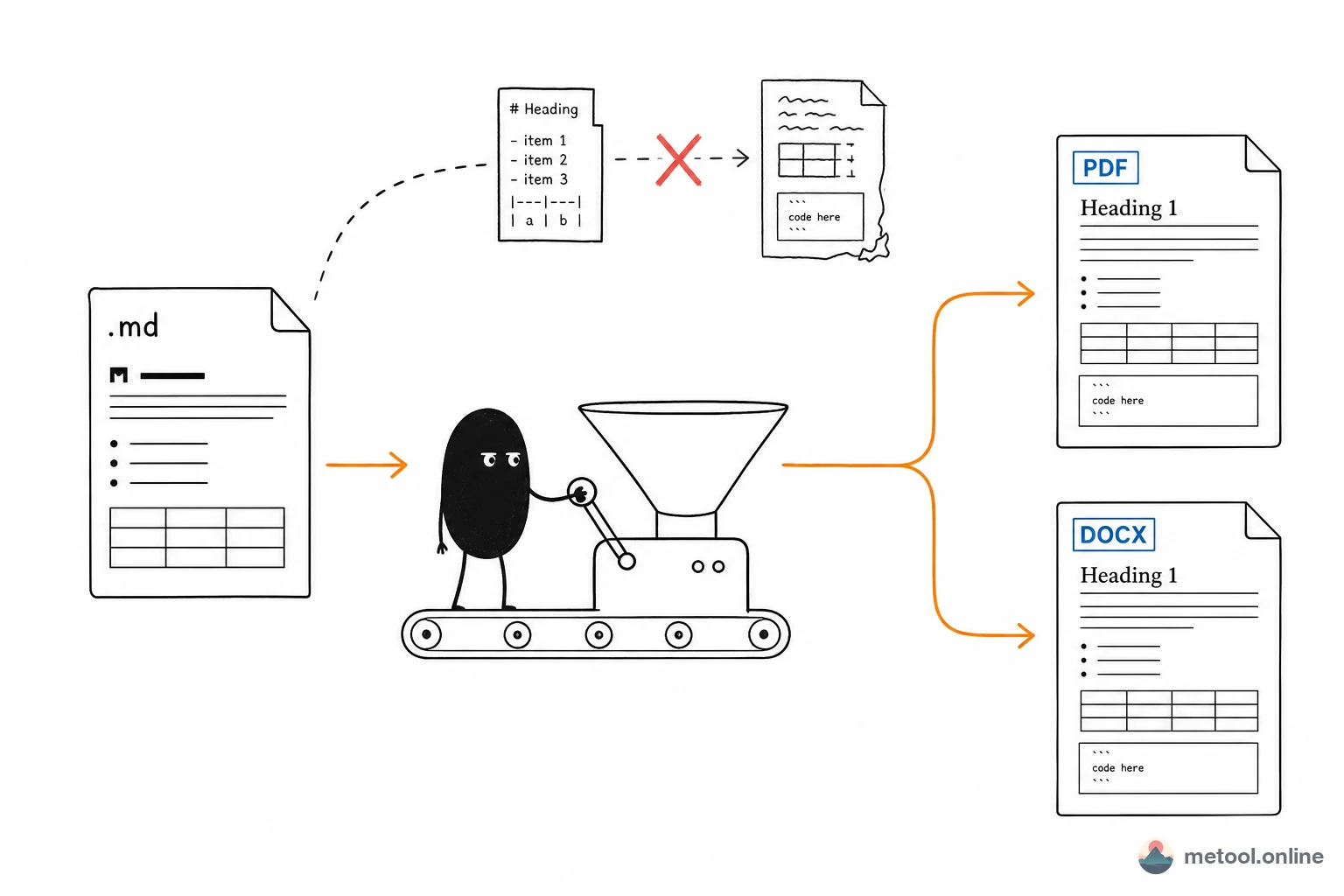
A .md file is source; .docx and .pdf are finished layout. ## Heading is only a marker; without a renderer, recipients see # as plain text—no font sizes, no table of contents, no page numbers. Clients, advisors, and admin staff work in Office and PDF; sending .md is sending a draft. Double-clicking .md and seeing hashes is an opening problem, covered in How do I open a downloaded .md file?. This article is only about delivery.
Should You Deliver Word or PDF?
Deliver Word if they will edit or apply a template; deliver PDF if they need a locked, printable file. The two formats serve different downstream jobs—neither is “more professional” by default.
| What they will do | Send | Why |
|---|---|---|
| Comments, wording changes, org template | Word (.docx) |
Styles stay editable |
| Print, archive, PDF-only submission | Layout locked across machines | |
| Just needs to look official | Prefer PDF | Avoids “please Save As again” |
| Both sides keep editing | Word, or keep collaborating in .md |
PDF is a poor round-trip |
One .md can export both formats. Decide which you are sending, then pick a conversion method.
What Are the Main Ways to Convert Markdown to Word / PDF?
Three mainstream paths, by convenience versus control:
| Method | Best for | Typical pitfall |
|---|---|---|
| Copy preview into Word | A short snippet | Web styles; font and spacing drift |
| pandoc on the command line | Batch, automation, custom templates | Install, flags, CJK fonts |
| Convert in the browser | Occasional single file, need it now | Very long docs hit memory limits |
CI that batches PDFs every day belongs to pandoc. Handing over one assignment or proposal usually costs less in a browser than installing an environment and tuning a template.
How Do You Convert .md to Word or PDF in the Browser?
For occasional delivery, browser conversion is the low-friction path: no install, no flags. Drop the .md into Markdown convert, pick Word or PDF, start the job, and download.
Quality depends on two things: whether the source is well-formed, and whether the engine does structural mapping (headings become Word heading styles, not merely large-looking text). Word output should be a real .docx they can restyle; PDF should paginate, ship usable CJK fonts, and keep table rules readable.
What Should You Fix in the Source Before Converting?
Messy output often starts as messy Markdown: missing space after #, uneven list indent, every ordered item written 1.. A previewer may “happen” to look fine; another engine will mis-parse.
Before a formal handoff, scan the file:
- Headings: one space after
#, and no skipped levels (#then###); - Lists: consistent indent at each level; spaces, not mixed tabs;
- Tables: the
| --- | --- |separator has the same column count as the header; - Images: relative paths, and the image files travel with the
.md.
For sloppy files from other people, fix these four before converting—faster than mopping up in Word afterwards.
Where Do Tables, Code, TOCs, and Images Break?
These four cause the most complaints after delivery. The issue is rarely “can it convert,” and usually “did you convert structure or a screenshot.”
- Tables: keep column counts honest; avoid hard line breaks inside cells. Wide tables can still be resized in Word; in PDF they may clip—split the table or turn it into a list.
- Code blocks: keep the language tag (
```python) if you want highlighting. Do not dump code into a blockquote; wraps and indent will vanish. - Table of contents: Markdown usually has no automatic TOC. If you need PDF bookmarks or a Word TOC, let the converter build it from heading levels—do not type a fake contents page and hope page numbers match.
- Local images: the converter must be able to read the files.
withoutfig.pngalongside the.mdyields a missing figure. Remote images behind a CORS block may become placeholders without failing the whole job. - Length: 80–150 pages is usually stable; 200+ pages—split by level-2 headings, export, then merge.
- Fonts: for Chinese PDFs, built-in serif/sans faces are safer. For Word they will keep editing, use SimSun, Microsoft YaHei, or Arial—not a face that exists only on your machine.
When Does pandoc Beat the Browser?
Use pandoc when you need batch jobs, automation, or strict templates: daily PDFs from many .md files, exact headers and bibliographies, CI. Browser conversion fits personal, occasional, need-it-now files. The test: will you repeat this, and do you need precise layout control? If both are yes, pandoc; otherwise the browser is usually cheaper.
Summary
Delivering Markdown as Word or PDF is a structural conversion, not photographing a preview into a document. Decide Word versus PDF first, then the path: do not paste short snippets as a habit; convert in the browser for one-offs; use pandoc for batch and templates. Straighten tables, code, TOCs, and images in the source before you export.
- Double-click
.mdshows hashes: How do I open a downloaded .md file? - How to write headings and lists: Markdown syntax: ten patterns