What's the easiest way to convert Markdown to PDF in 2026?
People searching "markdown to pdf" usually have a very specific problem: they have a .md file, they need a PDF, they don't want to install software, and they don't know how pandoc works. The need is simple, but the available tools surprisingly fall short — most online converters add watermarks, cap page counts, mangle formatting, or require account sign-up.
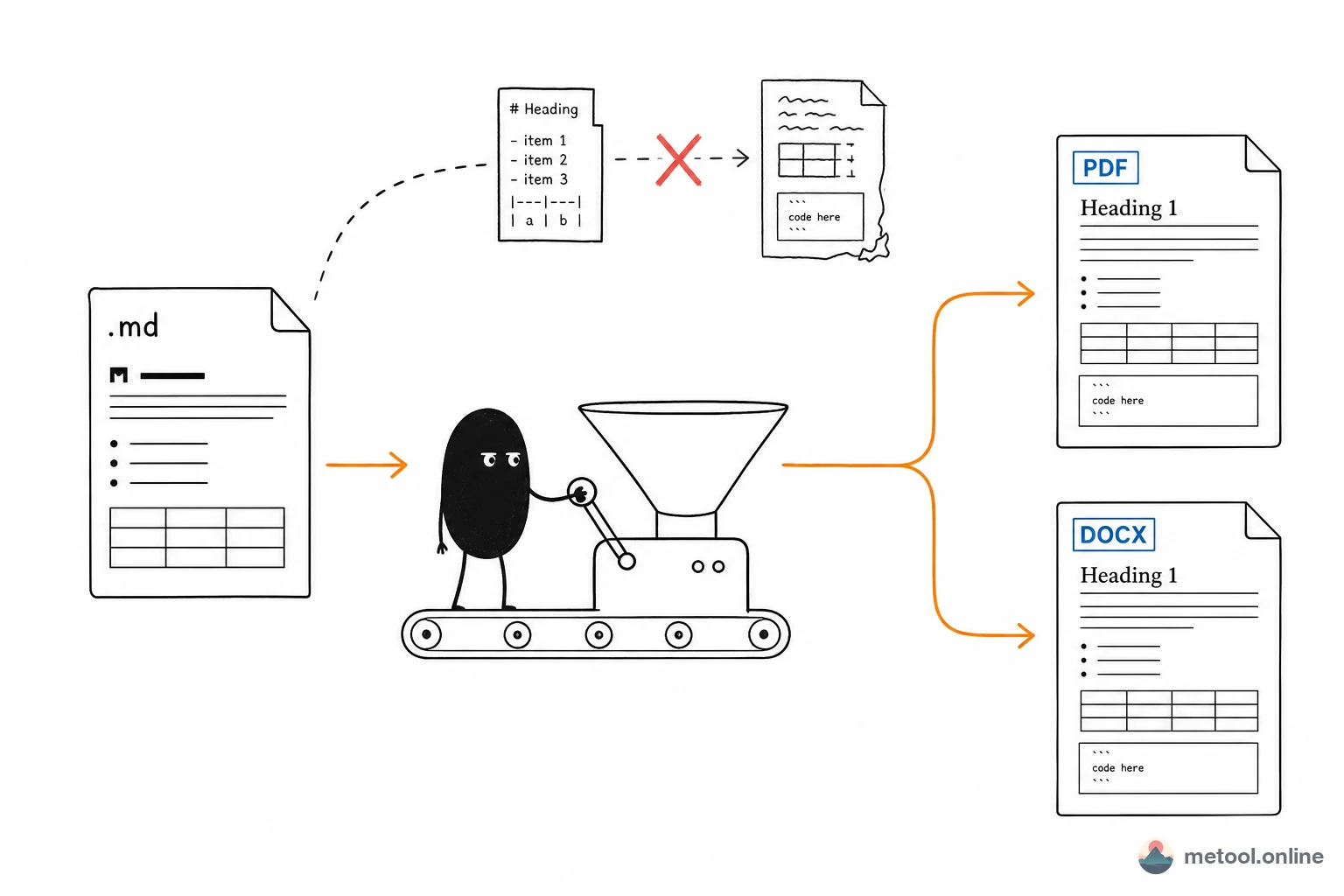
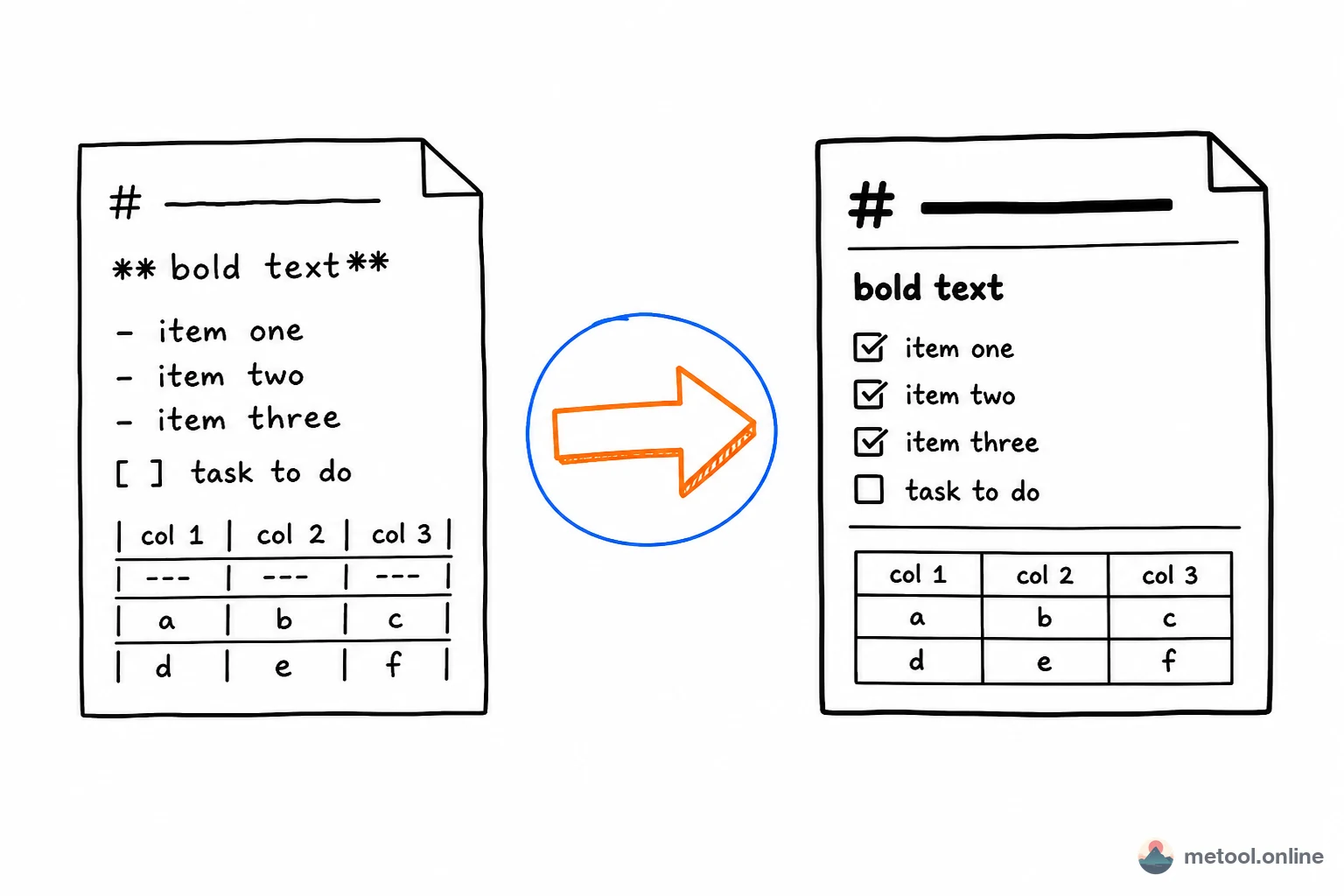
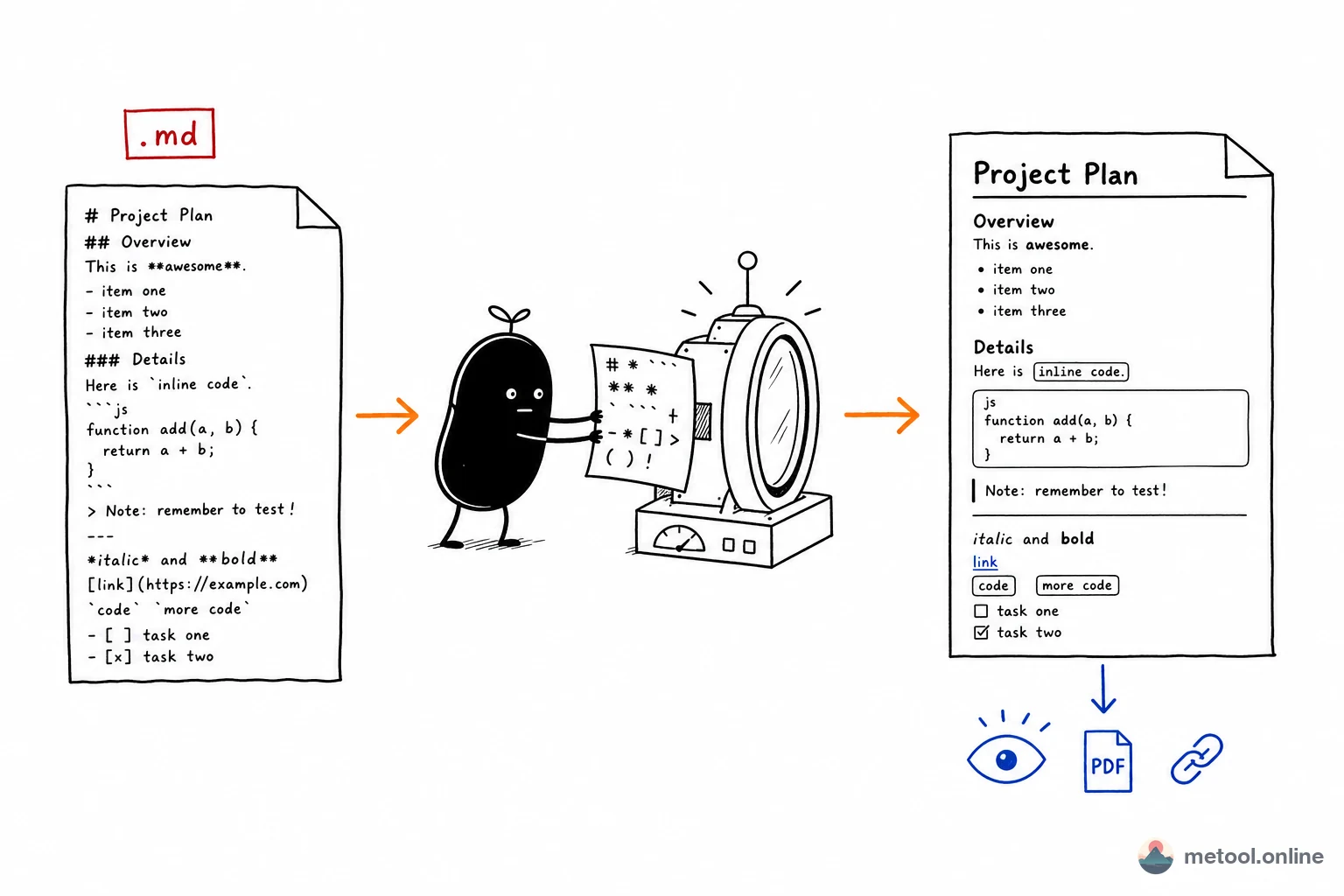
MeTool's Markdown to PDF converter is built around one goal: paste your .md, get a shareable PDF in seconds — no configuration required. Chinese fonts, syntax highlighting, table borders, and task lists all render correctly out of the box. Smart pagination never clips content mid-table or mid-code-block. Everything runs in your browser; your file never leaves your device.
Three common Markdown-to-PDF pain points — and how MeTool handles them
Pain point ① Chinese characters show as boxes or garbled text
The most common error when using pandoc or wkhtmltopdf for PDF output is a missing Chinese font, causing every Chinese character to render as a box or garbage. MeTool bundles Source Han Serif and Source Han Sans as web fonts — no dependency on system fonts — so Chinese renders correctly on Mac, Windows, and Linux with zero configuration.
Pain point ② Code blocks and tables get sliced in half by page breaks
Most online markdown-to-pdf tools perform a naïve page break: code blocks are cut at line 8, tables split through the middle, and the result is unreadable. MeTool uses a pixel-level pagination algorithm that detects the boundaries of code blocks, tables, and headings, ensuring page breaks always fall in natural gaps — never inside an element.
Pain point ③ Having to install pandoc / LaTeX / command-line tools
pandoc is powerful but its installation chain is long (high-quality PDF needs a full LaTeX distribution), and debugging failures is painful. MeTool's approach: open browser, paste content, click convert, download PDF. Nothing to install, works on any device with a browser.
How to convert Markdown to PDF with MeTool (step by step)
- Open the tool and paste / upload your .md: paste Markdown text directly into the left editor, or drag-and-drop a .md file. Content loads instantly and renders in the live preview.
- Select PDF as the export format: PDF is selected by default. Switch between light and dark themes — light for printing and formal documents, dark for screenshots and social sharing.
- Click "Convert & Download": the PDF downloads in seconds. All rendering and conversion runs locally in your browser — no upload wait, no server queue.
Tip: if your .md includes code blocks, check the language tag (e.g. ```python) in the preview before converting — correct language tags give the best syntax highlighting in the output PDF.
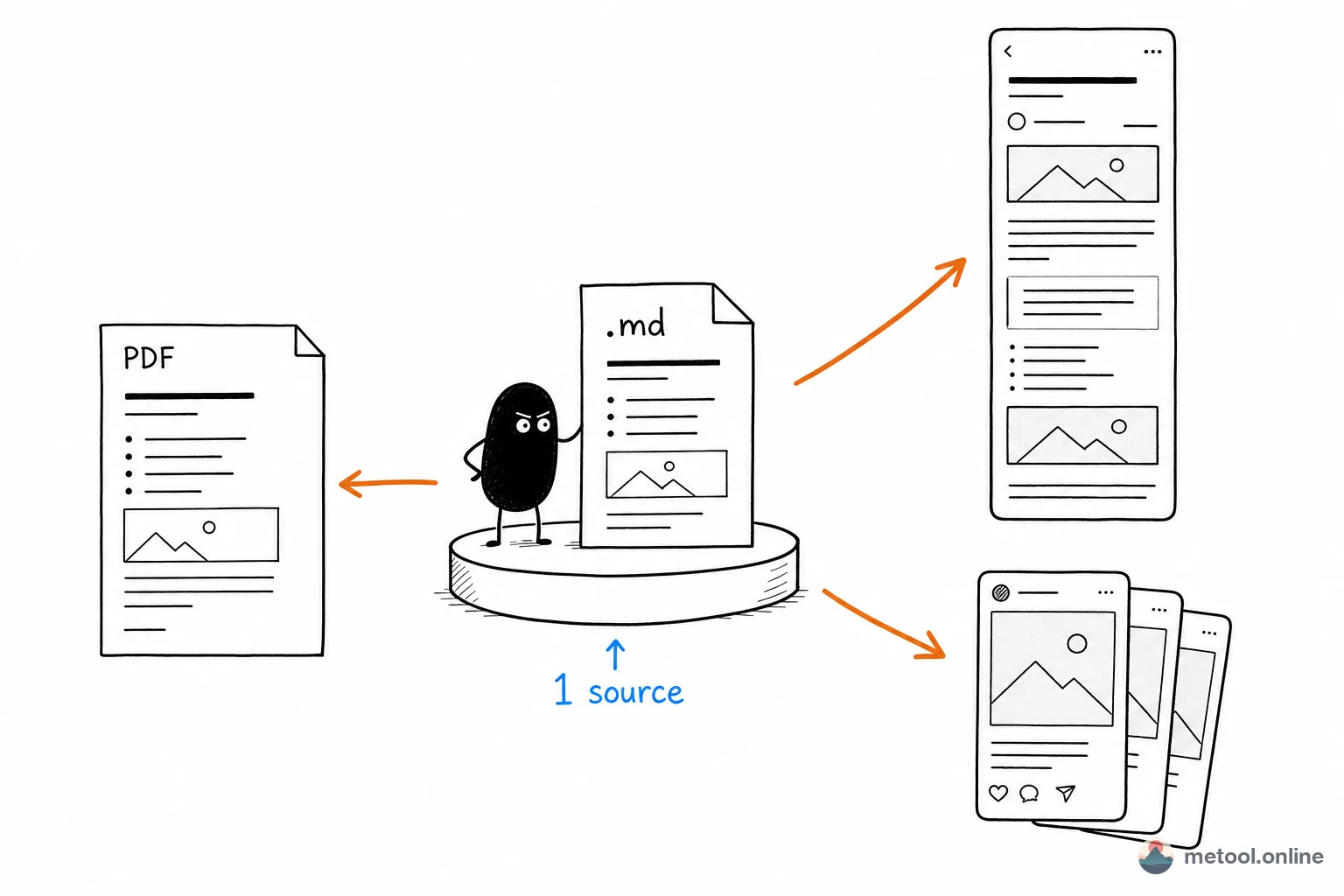
Beyond PDF: other formats from the same .md file
In addition to PDF, MeTool can export the same .md to other formats — useful when the same content needs to go to different destinations:
- Word (.docx): for editors or clients who need to make further edits — real .docx structure, not HTML-renamed-to-docx, so styles are editable in Word.
- PNG / JPG / WebP: export notes as images to share on Twitter / X, WeChat Moments, or LinkedIn — dramatically higher engagement than sharing a link.
- HTML: self-contained HTML with inlined CSS, ready to embed in any website or feed into Hexo / Hugo as content.
No need to juggle multiple tools — one .md file, all output formats handled in one place.