Getting stuck sending phone files to a computer is usually not “no way” but “wrong method for the scene.” Ask three things first: how big is the file, are both devices on the same WiFi, do you care about privacy and quality—once those are clear, the method follows.
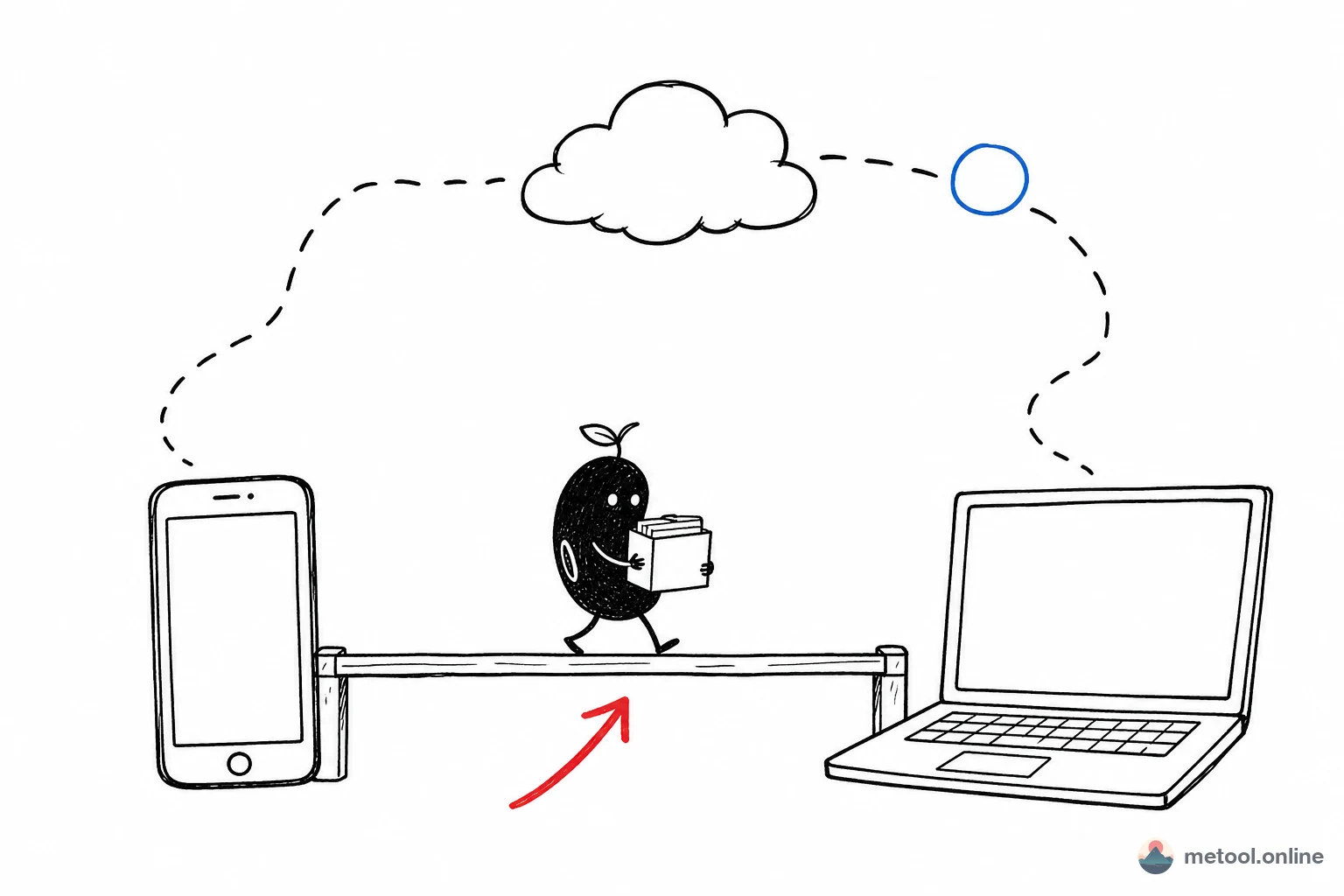
Ask Three Questions Before You Pick a Method
There is no single correct channel from phone to PC—only the channel that matches same WiFi or not, roughly how large the file is, and whether you accept compression or an upload to someone else’s server. Same WiFi and a few photos or one video: prefer LAN peer-to-peer. Different networks or you need a link for someone else: cloud or email. Tens of gigabytes and you want reliability: USB cable. Chat apps are for small, casual sends and they compress by default.
AirDrop, Windows ↔ iPhone, and cross-ecosystem choice belong in the cross-device comparison. This article only answers the phone → computer direction.
What Are the Main Ways to Send Phone Files to a Computer?
Five common paths: USB cable, messaging-app file transfer, cloud storage, email, and LAN direct transfer. The root difference is which route data takes: cable and LAN stay local; messaging, cloud, and email upload to a third-party server first. That path drives speed, quality, and privacy.
Many people default to chat because it is already open—but chat is built for messages: compression, size caps, and files passing through the provider. The handiest option is not always the right one.
Same WiFi, No Cable: How LAN Direct Transfer Works
When both devices share a router, LAN direct transfer is usually least hassle: each side opens a page that can form a peer-to-peer link; files stay on the local network. Speed is limited by the router and NIC; you send originals, not chat-compressed images; you do not need a dedicated installer for a one-off send.
A product-agnostic sequence:
- Confirm phone and PC show the same WiFi name; turn off “mobile data only” / dual-data on the phone.
- Open a peer-to-peer transfer page (or equivalent) on both sides; generate a code or QR as the page instructs.
- Pick files on the sender; wait for progress on the receiver; close both pages when done.
- If it sits on “waiting to connect,” check the failure causes below before you switch tools.
Cross-device transfer is one in-browser implementation of this path: open the page on phone and PC, pair, pick a file. It fits a few photos, one video, or a snippet of text.
Same WiFi—Why Does It Still Fail?
A failed link on “the same WiFi” usually means the two devices are not on the same layer-2 network. Guest and hotel WiFi often enable AP/client isolation: everyone can reach the internet, nobody can see each other. Campus and office nets may put the phone and PC on different VLANs. A phone still on cellular plus a PC on WiFi looks “online” but cannot peer. If QR pairing fails, check whether the browser blocked the camera or clipboard.
No LAN tool fixes isolation. Use cloud, email, or a cable.
Very Large Files or Different Networks—Then What?
If the devices are not on the same WiFi, or you need multi-GB files for long-term storage, LAN transfer does not apply:
- Different networks, sharing with someone else: a cloud share link or email. Email attachments often cap at 25–50 MB; above that, split or use cloud. Cost: upload to a third party, possible compression or retention. Cloud is upload-then-download—two public hops, often slower than LAN for large video.
- Your own devices, huge files, maximum reliability: USB remains the most dependable. Direct USB ignores network jitter; tens of GB stay stable. Tradeoff: find the cable; the phone may need “file transfer” mode, not charge-only.
Rule: same WiFi → LAN; cross-network → cloud/email; huge and must be stable → cable.
iPhone to Windows, Android to Mac—What Changes?
Across ecosystems AirDrop is unavailable, but the same three questions still hold. iPhone → Windows or Android → Mac differs mainly in built-in channels: Apple-to-Apple can still use AirDrop; once one side is not Apple, return to WiFi / size / quality and do not expect AirDrop to cross.
For AirDrop and cross-platform choice in full, see AirDrop vs messaging vs cloud vs LAN.
Why Do Chat-App Photos Look Soft After Transfer?
Soft photos after chat transfer are almost always default compression, not a broken phone. Chat pipelines shrink images to save bandwidth and may re-encode video. Keep originals: enable “original image/file” when sending; for design files, footage, or RAW, use cable or LAN, not chat. The wrong channel loses detail you cannot recover in post.
How to Choose Among the Options?
| Method | Best for | Speed | Quality | Privacy | Typical failure |
|---|---|---|---|---|---|
| LAN direct transfer | Same WiFi, temporary, privacy-sensitive | Fast | Original, uncompressed | No server relay | AP isolation, guest net, one side on cellular |
| USB cable | Very large files, long-term, reliability | Fastest and most stable | Original | Fully local | Phone left in charge-only |
| Messaging file transfer | Small files, quick send | Moderate | Often compressed | Via third-party server | Forgot “original,” hit size cap |
| Cloud storage | Cross-network, save or share | Slow (two public hops) | Can keep originals | Uploaded to cloud | Must download after upload |
| Email attachment | Cross-network, small files | Moderate | Depends | Via mail server | Over ~25–50 MB |
Summary
Route phone-to-PC with three questions: same WiFi, temporary, care about quality → LAN; cross-network share → cloud; huge and stable → cable; chat only for small sends and only with originals on. If the same WiFi still fails, check isolation and VLAN before you swap LAN tools. Cross-ecosystem and AirDrop live on the comparison article—do not compete with “phone to computer” here.