
Math Formulas in PowerPoint and Word — The Missing Step
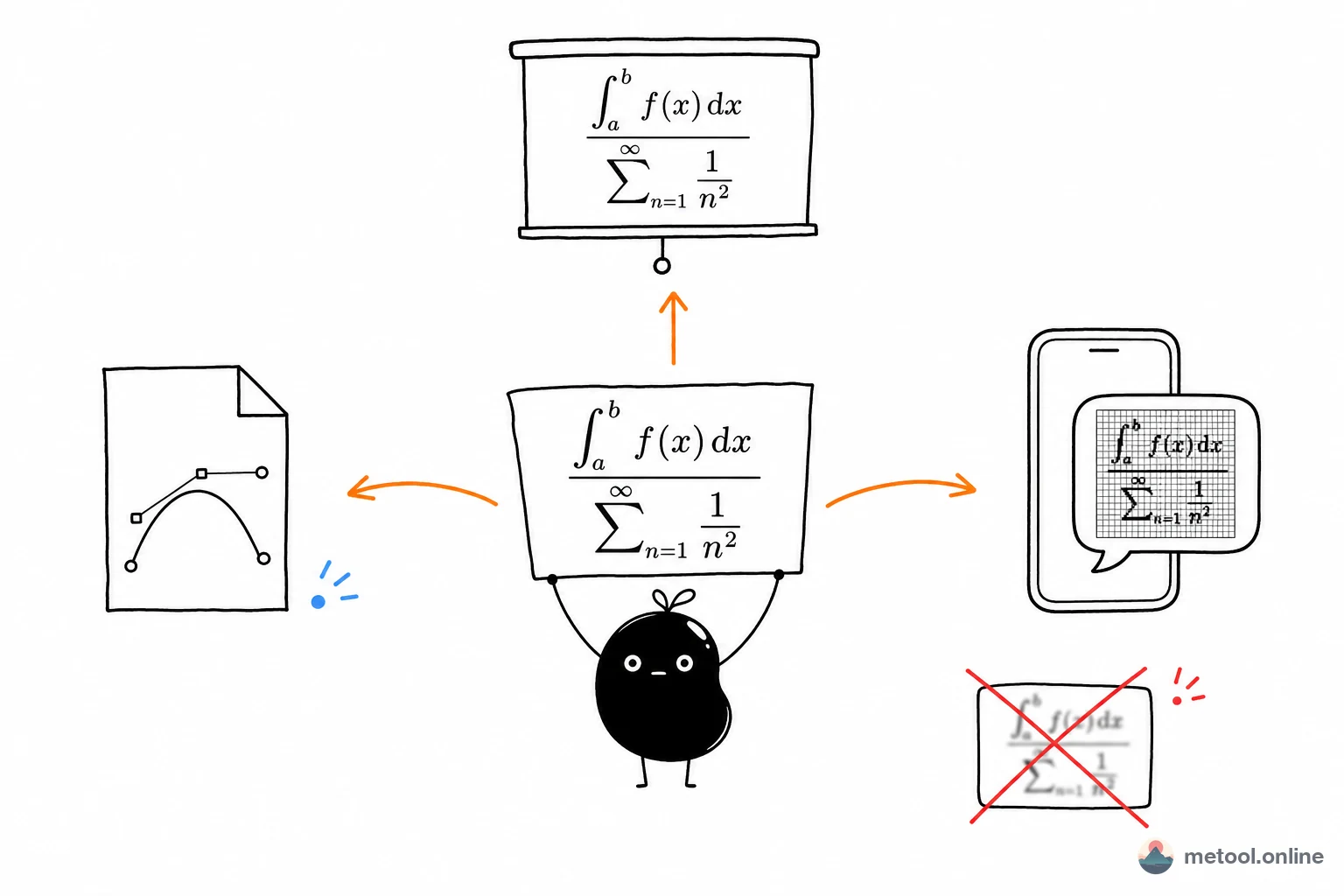
This is a problem nearly every STEM student and teacher runs into: you've written a LaTeX formula and now you want it in a PowerPoint slide, a Word document, a WeChat article, or just a screenshot to share in a chat — but none of these platforms render LaTeX.
The old solutions were either painful (install a full LaTeX distribution, compile, screenshot) or ugly (paste the raw code and hope someone can read \frac{-b\pm\sqrt{b^2-4ac}}{2a}). MeTool's LaTeX formula editor is built for exactly this gap: type a LaTeX formula, see the live rendered preview, and export as a high-res PNG or scalable SVG — ready to paste into any platform.
Everything runs in the browser. No installation required. Your formulas never leave your device.
How to Use the Symbol Panel — Without Memorizing LaTeX Commands
One reason LaTeX has a steep learning curve is that its common commands are numerous and non-intuitive: \alpha for Greek letters, \frac{}{} for fractions, \int_{a}^{b} for integrals. For users who write formulas occasionally, memorizing all of this is inefficient.
The symbol panel on the right side provides a click-to-insert alternative:
- Symbols tab: Greek letters (α β γ Δ Σ…), operators (± × ÷ ≤ ≥ ≠ ∈ ∇ ∂…), sub/superscripts (x² xₙ x̄ x̂ ẋ) — click and the command is inserted at cursor position.
- Templates tab: fractions
\frac{}{}, roots\sqrt{}, sums\sum_{i=0}^{n}, integrals\int_{a}^{b}, matrices, determinants, piecewise functions, aligned equations — after insertion, the cursor jumps automatically to the first argument placeholder.
On mobile, the panel switches to a tab layout: tap a symbol or template, and the view switches back to the code editor automatically so you can see the result without losing your place.
Choosing the Right Export Format: PNG, SVG, or Copy LaTeX?
The tool supports four export options — choose based on your destination:
- PNG (2× HiDPI): best for Word documents, WeChat screenshots, and social media posts. Output resolution is 2× screen pixels, so it looks sharp on Retina and high-DPI displays. Background is always white, ready to drop into any document.
- SVG (vector): best for PowerPoint/Keynote, design tools (Figma/Sketch/Canva), and tech blogs (embed in HTML). Scales to any size without pixelation, and file size is smaller than PNG.
- Copy LaTeX source: best for platforms that natively render LaTeX — Notion, Obsidian, Jupyter Notebook, Typora, GitHub READMEs (inline
$...$, display$$...$$). Click the "$…$" button to automatically wrap the source in dollar-sign delimiters. - Copy SVG code: copies the raw SVG markup to the clipboard — paste directly into an HTML file or any rich-text editor that supports inline SVG.
Whether the UI is in light or dark mode, exported PNG and SVG always use a white background with black formulas, so the output is always document-ready.
How Is This Different from the LaTeX Document Editor?
MeTool's LaTeX toolset includes two tools with different scopes:
- Formula Editor (this page): focused on a single math expression — write, preview, and export as an image. No document structure (no
\documentclass,\section, tables, etc.), designed purely for the "type formula → export image" workflow. Ideal when you need one formula as an image for a slide or article. - LaTeX Document Editor: supports full .tex document structure (sections, lists, tables, formulas), suitable for previewing and lightly editing an entire LaTeX document.
If you need to work with a single math formula, this editor is the faster, more focused option. If you need to preview or edit a full .tex document, switch to the document editor.