Writing Markdown in the browser in 2026: why it beats a desktop editor
Markdown has become the de-facto standard for technical writing, blog posts, READMEs, study notes, and team documentation. But every time you want to jot something down, firing up Typora, Obsidian or VS Code feels heavy — context switch, plugin reload, startup wait.
An in-browser Markdown editor takes the opposite approach: open a tab and write, close it when done, drafts persist locally without ever leaving your device. MeTool's online Markdown editor takes the idea to its minimal: left side editor, right side live preview, auto-save to localStorage. It's not here to replace your serious writing tool — it's here for the "I want to write something for 5 minutes and possibly come back later" moments that make up most of our actual writing.
The most important property in 2026 is its privacy model: every character you type lives only in browser memory and localStorage. No cloud sync, no account system, no tracking pixels reading your content. That makes it safe for confidential planning docs, unreleased product specs, journal entries, anything you wouldn't paste into Google Docs.
Core features of the MeTool Markdown editor
Live preview (GFM-flavored)
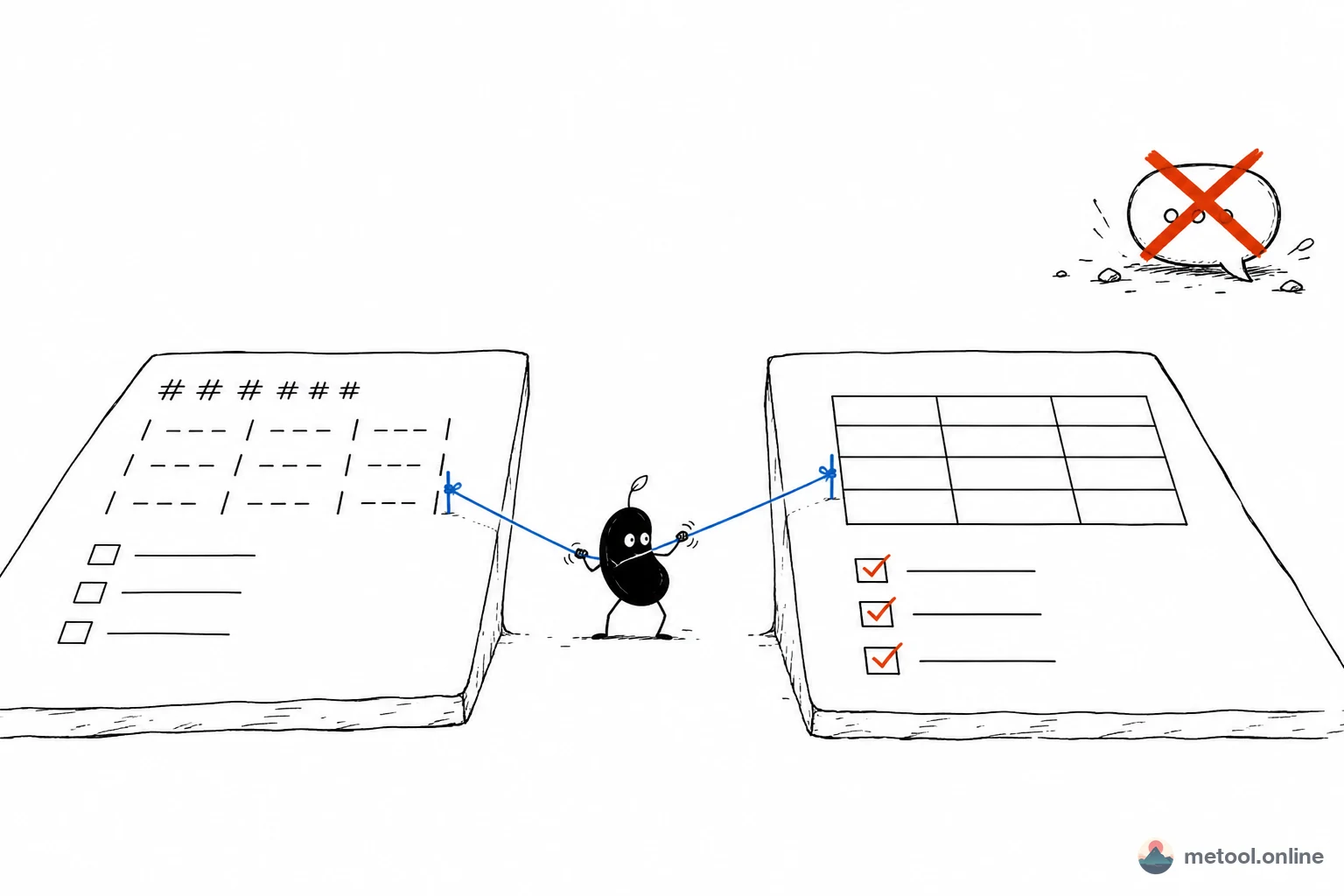
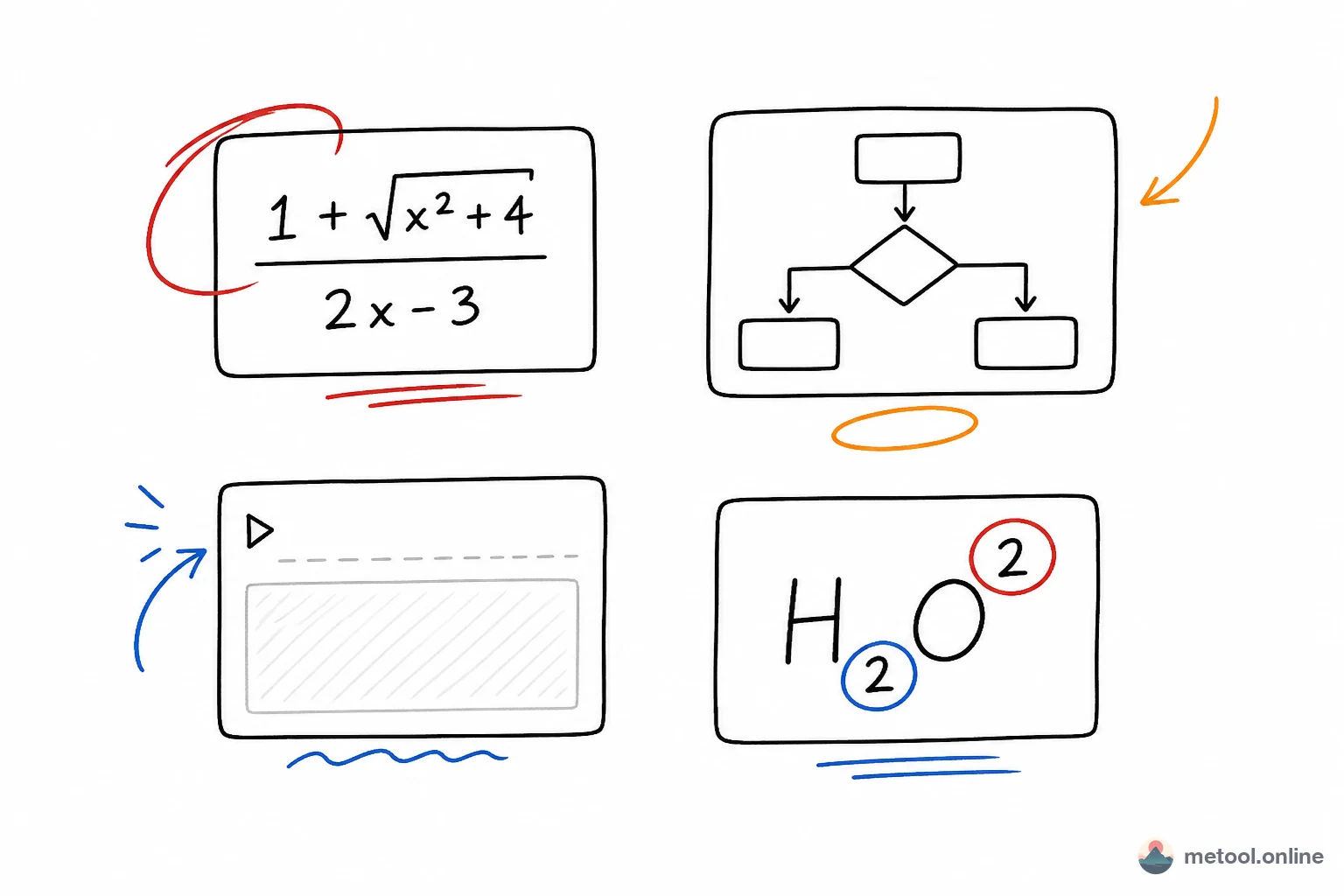
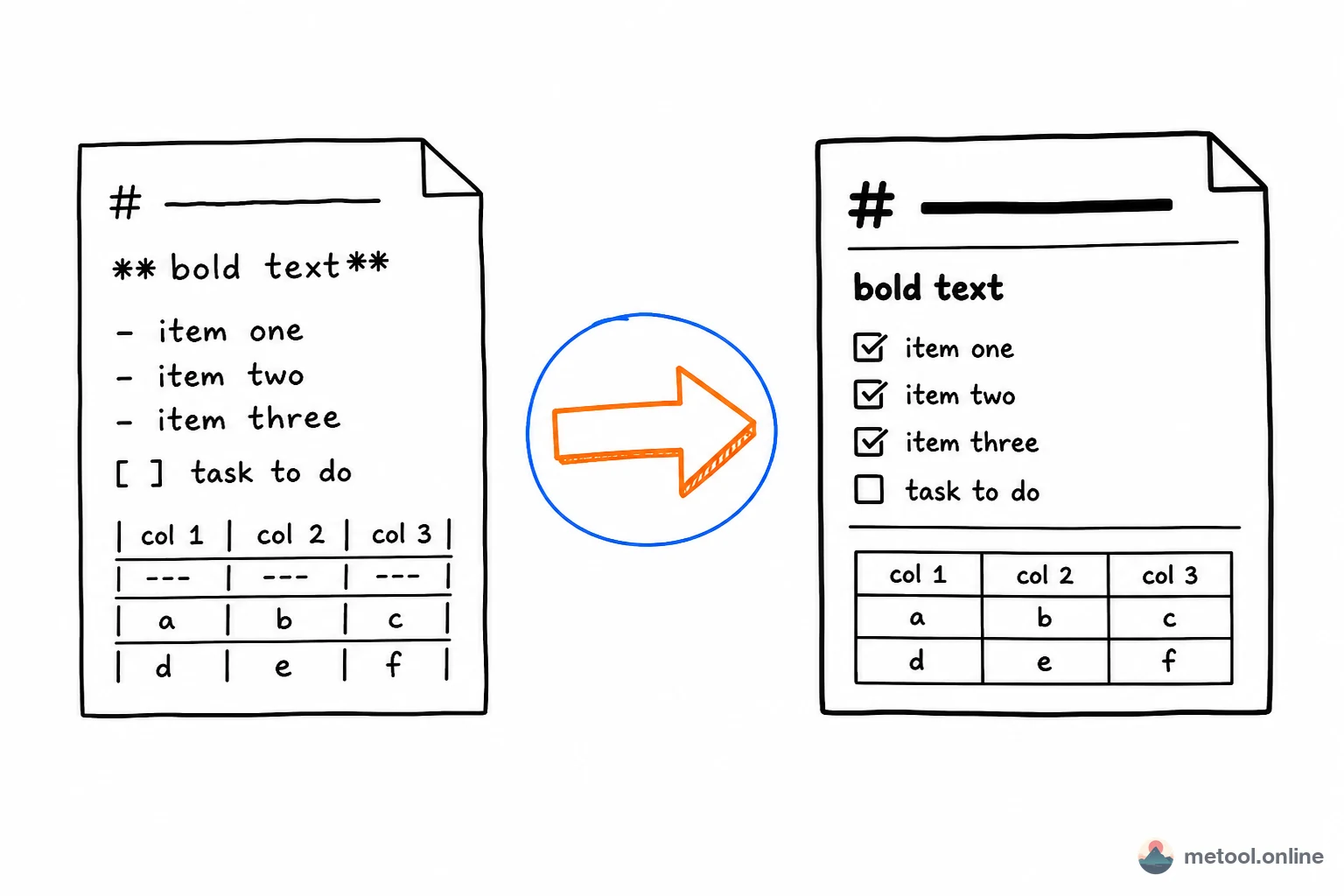
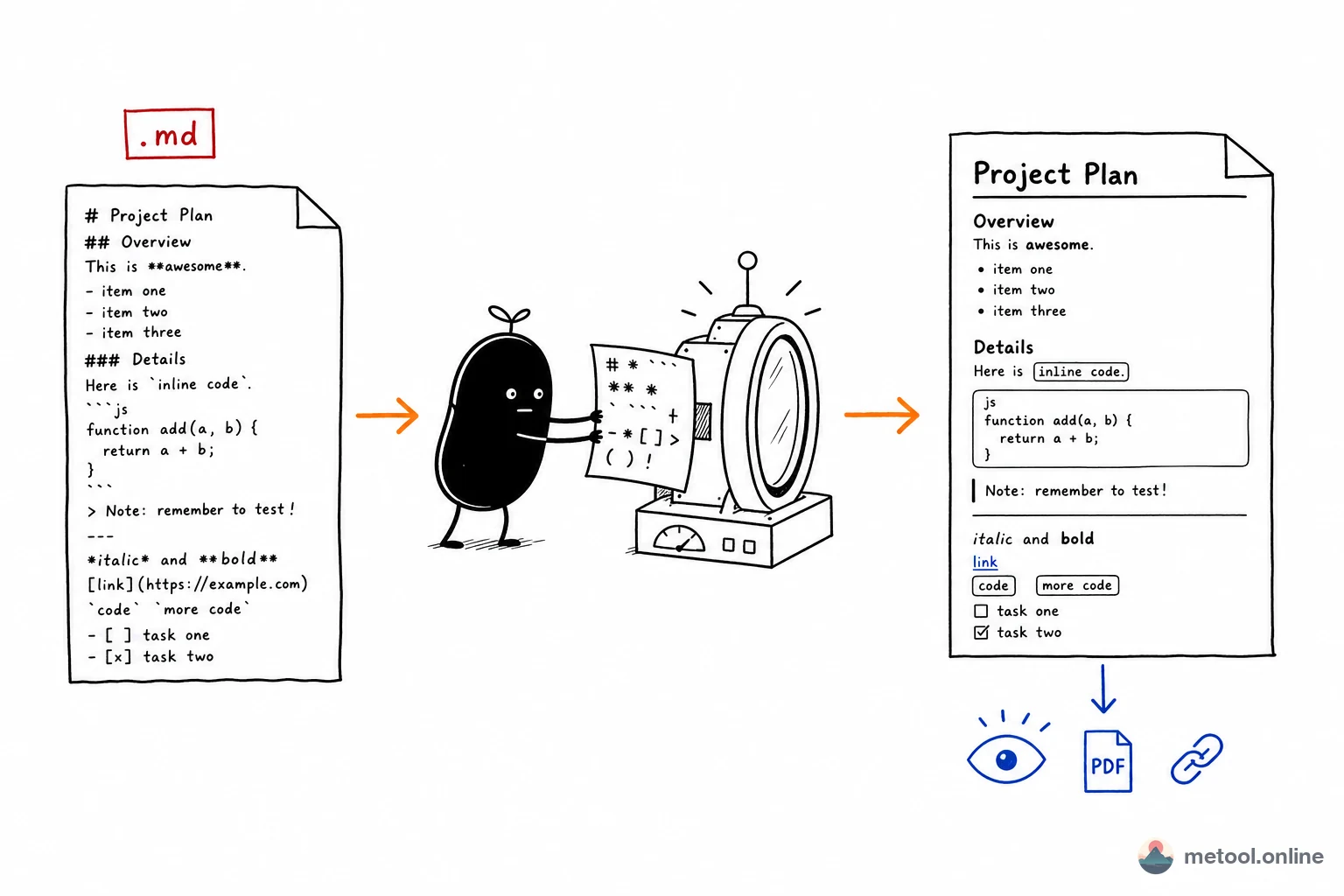
The right pane re-renders as you type: heading levels, tables, task lists, strikethrough, fenced code blocks, blockquotes, auto-linked URLs — all rendered in GitHub-Flavored Markdown style. Paste a snippet from a GitHub README and you'll see it the way GitHub would. New to the syntax? Learn while you write with our guides: Markdown basics (headings, lists, tables, code blocks) and advanced Markdown (math, Mermaid diagrams, collapsible sections) — copy any sample into this editor to practice.
localStorage auto-save
Every keystroke is debounced 500ms and persisted to localStorage. Accidental tab close or browser refresh won't lose your draft. Reopen the page and your content is exactly where you left it — drafts "live" on this device until you explicitly clear them.
Export to .md file
Click the "Save" button in the toolbar (or hit Cmd/Ctrl + S) to download the current content as a metool_markdown_edit.md file. From there it can flow into Git, Notion, Obsidian, Typora, or any Markdown-aware tool.
Built-in toolbar (bold / italic / link / table / code…)
The top toolbar covers the high-frequency formatting buttons: bold, italic, strikethrough, headings, ordered / unordered lists, task lists, blockquote, fenced code, inline code, link, image, table, undo/redo. Power users can ignore it and type Markdown directly — the toolbar is just a convenience.
Desktop & mobile dual-form
Desktop defaults to two-pane (editor + preview). On phones it switches to a tab toggle so each pane gets full width. Portrait writing + landscape preview is a common pairing on tablets.
Best-fit scenarios
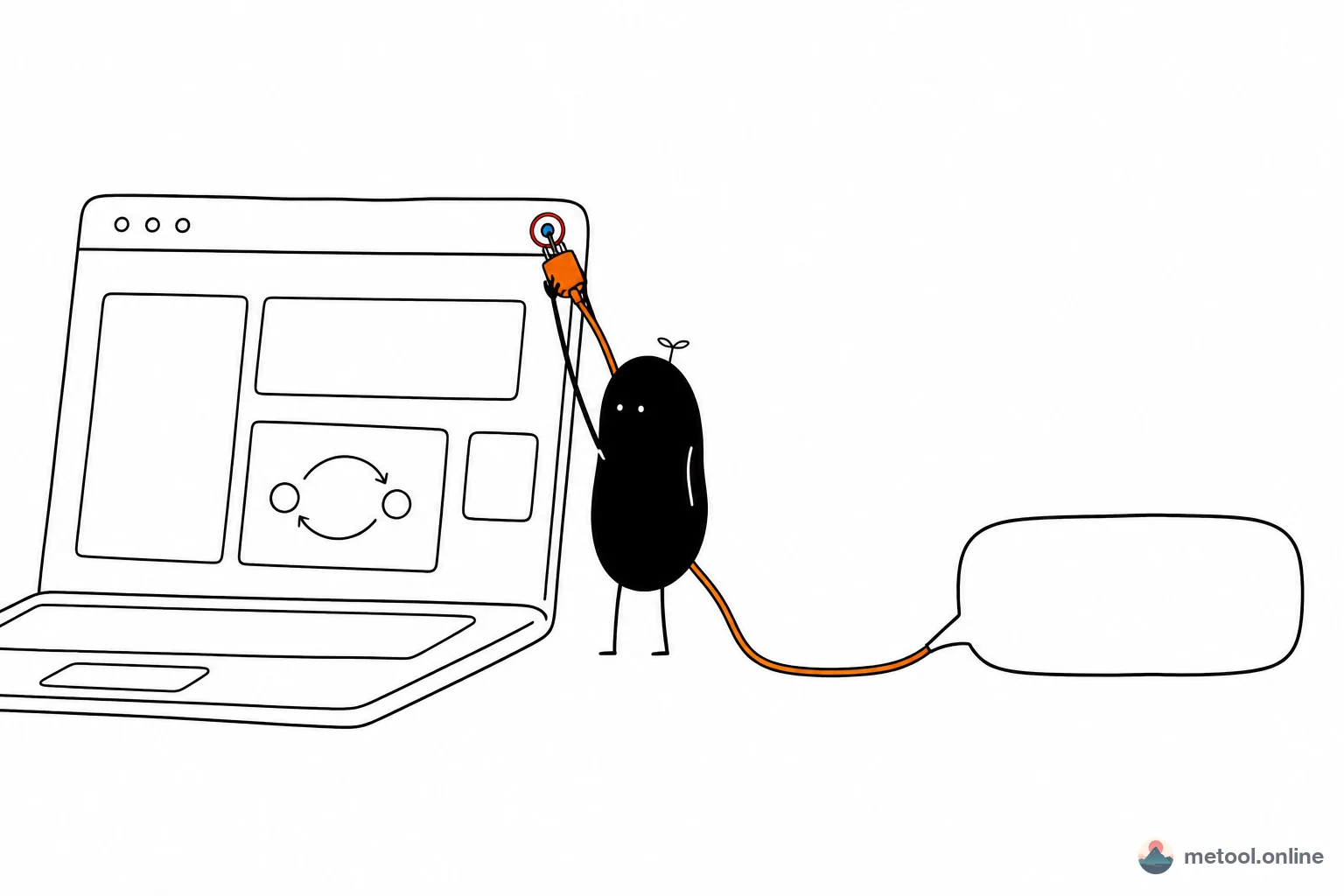
- Share a preview with teammates or friends: once you're done writing, hit the "Send" button in the toolbar — it generates an online preview link in one second. Anyone who opens the link sees the fully rendered Markdown in their browser for 7 days. No Markdown viewer needed on their end, no sign-up, no install. Perfect for sharing a PRD, design spec, or technical RFC with colleagues who don't have a Markdown renderer.
- WeChat / Xiaohongshu drafts: get the structure right in the editor first, then jump to Markdown → WeChat or Markdown → Xiaohongshu for one-click publishing.
- GitHub Issue / PR descriptions: write here, copy-paste into GitHub — all GFM syntax round-trips cleanly.
- Reading & study notes: too lazy to set up Obsidian? Open a tab, jot down, download the .md, archive it later in your knowledge base.
- Tech doc drafts: requirement reviews, architecture proposals, API design notes — keep them off the wiki until the team aligns. If you want someone to review early, just hit "Send" for a shareable link — no document platform required.
- Cross-device temporary bridge: halfway through writing and need to switch machines? Download the .md and AirDrop / email / message it across — done in seconds.
Suggested workflow: chain the editor with publishing tools
- Draft: write the body in Markdown here, with the live preview on the right confirming structure as you go.
- Share for review: done writing and want a teammate to review? Hit the "Send" button and copy the online preview link to share. They open it in their browser and see fully formatted Markdown — no Markdown viewer, no app to install. Link is valid for 7 days. Skip the "send .md → teammate says they can't open it" back-and-forth.
- Polish: close the tab, take a break, come back later — localStorage hands the draft right back to you.
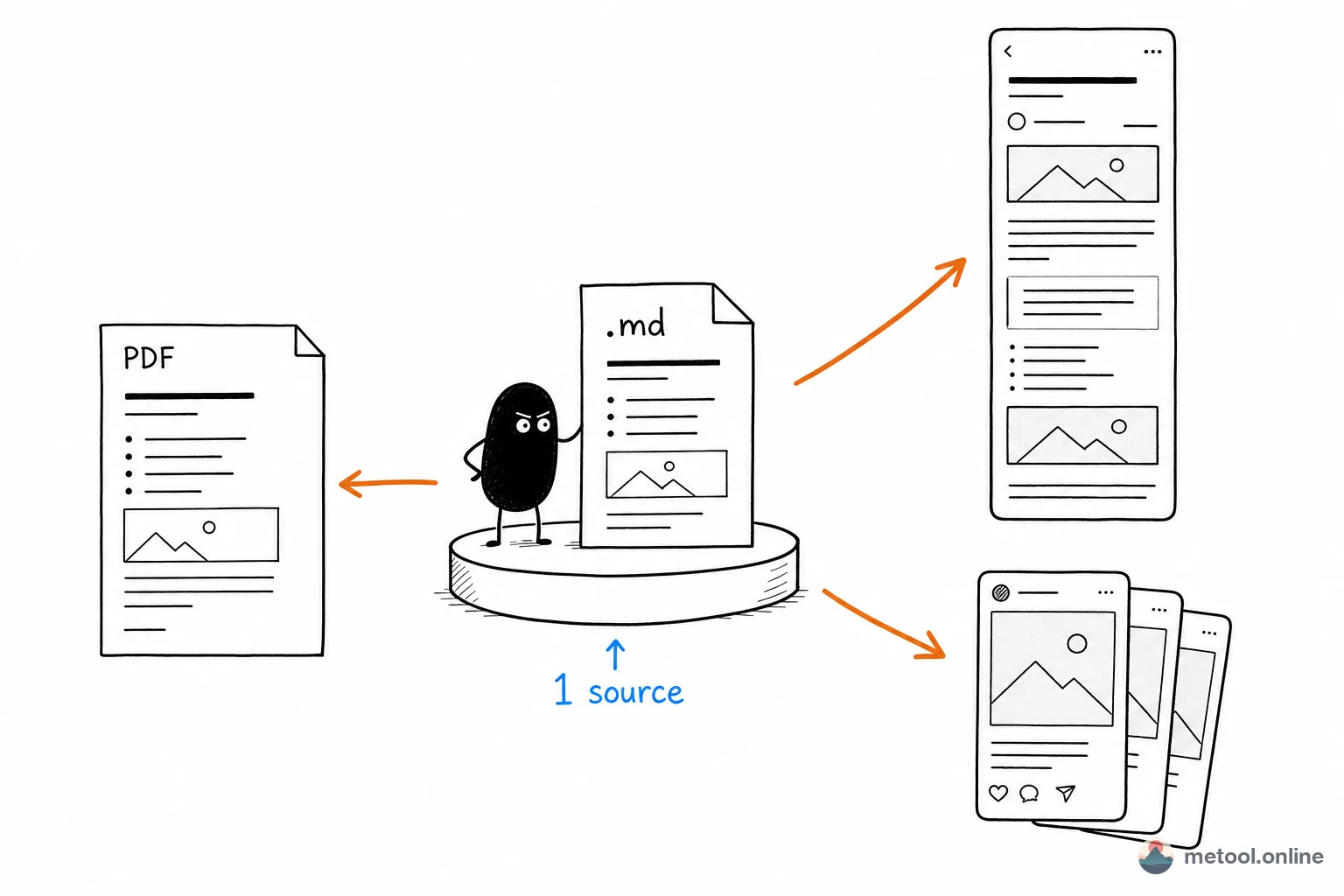
- Distribute: the same .md content can flow through MeTool's related publishing tools — WeChat Article, Xiaohongshu Cards, PDF / Image / HTML / Word. Write once, publish everywhere — no manual reformatting per platform.
- Archive: download the .md to your Git repo / knowledge base, or paste it into a GitHub Issue / Notion page.
The whole flow has no accounts, no uploads, no subscriptions — exactly the kind of working environment 2026 content creators have a hard time finding.