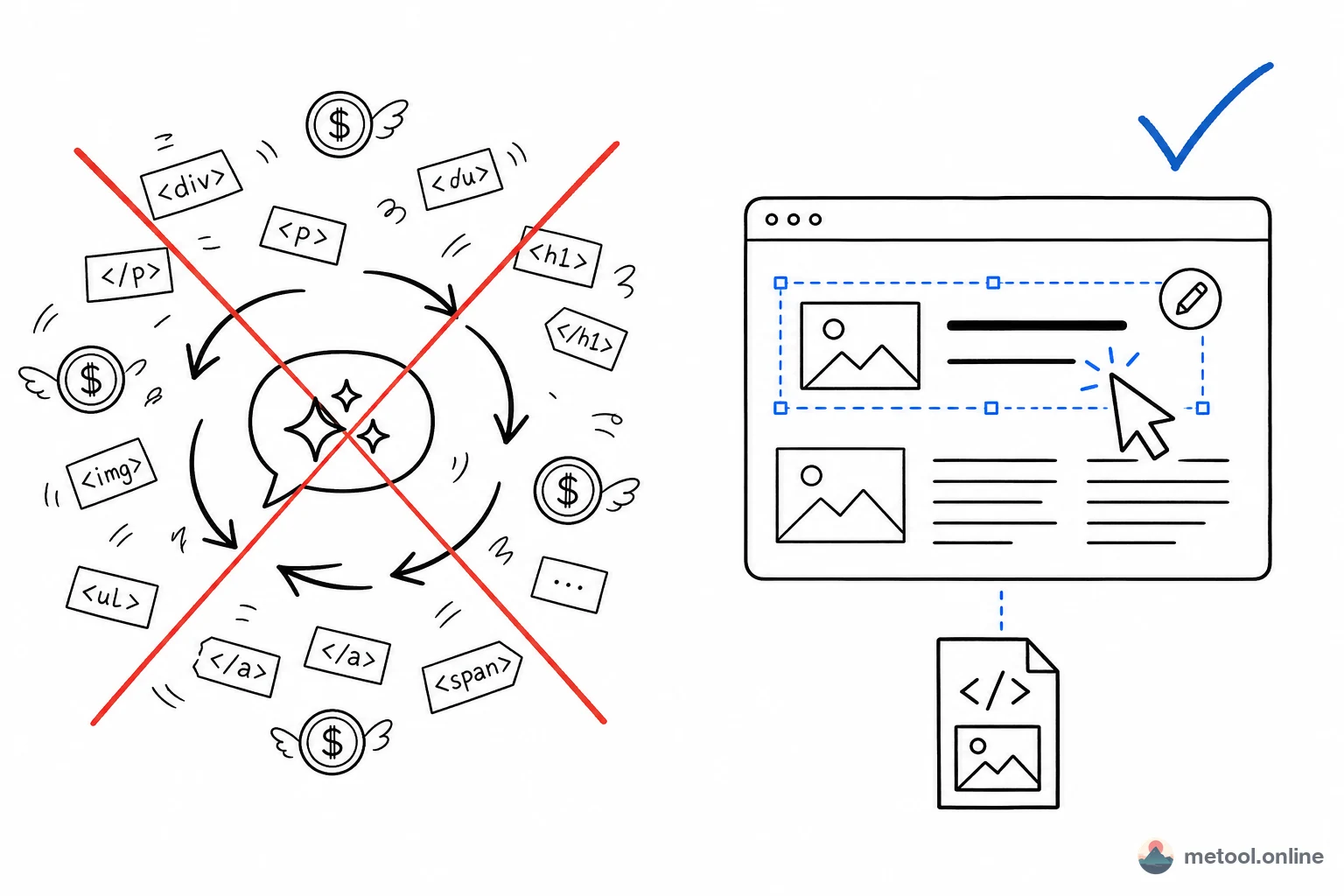
AI-generated landing pages, reports, and slides are often nine-tenths right—one headline, image, or phrase off. Going back to tweak the prompt and regenerate is the common but least efficient choice: slow, token-heavy, and likely to break parts you already liked. The smarter move is to edit directly on the page.
Why Shouldn't You Re-Prompt Just to Change One Word?
Re-asking AI for a small fix costs more than it looks. Each generation is random—you want a new title, but the model may rewrite colors, layout, and other paragraphs too. You end up diffing versions and correcting again, drifting further each time.
The practical cost: paste the whole HTML back into chat, explain "only change this, leave that," wait for output, copy and save—minutes per round plus wasted tokens. All you needed was to change "Plan A" to "Plan B" or swap a placeholder for your product shot. WYSIWYG micro-edits should not route through a model; a manual click takes seconds and stays fully under your control.
How Do You Edit the Page Without Knowing HTML?
You can edit without HTML by using a visual editor that lets you work on the rendered page, not source code. It turns "edit a webpage" into something as intuitive as editing a document:
- Click to edit: click text on the page and type—what you see is what you get;
- Replace with embed: select an image, upload a replacement—it becomes base64 embedded in the HTML;
- Delete / drag: remove unwanted blocks with one click; drag to reorder when needed;
- Style tweaks: select text to adjust font, size, color, alignment—no CSS line required.
Concrete steps: open the visual HTML editor, upload the AI-generated .html, click what you want to change on the canvas—no code shown or needed. Export a clean, usable new .html when done.
After Editing, Will Images Still Show When You Send the HTML to Others?
Yes—if images are embedded in the file. This is the most common pitfall when editing HTML by hand: images live in a folder next to the file. Send the HTML alone or open it on another machine and images break—the paths point to files that are not there.
When a visual editor replaces an image, it writes base64 directly into the HTML. The download is a single self-contained file with all image data inside—any computer and browser can display it without an images folder. That matters when sending to colleagues or clients.
Will Drag-and-Drop Mess Up the Layout?
Not if the editor understands how elements are laid out. Manual HTML edits scare beginners because "one drag and the whole page collapses." A good visual editor distinguishes: elements in normal document flow (flex / grid) use order-based drag—on release they snap back to layout rules and stay stable across screen sizes; only originally absolutely positioned decorations allow free placement anywhere.
You can reorder confidently without breaking responsive layout. Before editing, check how the page looks on mobile with HTML preview—switch phone / tablet / desktop viewports first, then open the editor.
When Should You Go Back to AI?
Visual editing is not universal. It excels at content-level tweaks—copy, images, deleting paragraphs, font/color, reordering. But structural rebuilds—"turn single column into three card columns," "add a signup form block," "swap the entire design system"—still benefit from AI regeneration or iteration on top of AI output.
Simple rule: edit existing elements' content or style by hand; invent new structure with AI. Best workflow: AI builds the skeleton, visual editing polishes—fastest way to finish AI-generated pages.
Which Approach Fits Which Change?
| What you need | Recommended approach | Tool |
|---|---|---|
| Change headline / copy / numbers | Click and edit | Visual HTML editor |
| Swap images / product shots | Select image, upload (auto-embed) | Visual HTML editor |
| Remove blocks, reorder | Delete / drag to sort | Visual HTML editor |
| Check mobile layout first | Switch viewport preview | HTML preview |
| Share finished page with others | Generate preview link | HTML share |
| Add whole new sections / redesign | Go back to AI | — |
Summary
When an AI page needs one last push, do not re-feed the prompt—slow, costly, and risky for parts you already like. For content and style tweaks, use the visual HTML editor to click and edit on the page; images embed automatically so nothing breaks. Preview with HTML preview before editing; share via preview link when done. Remember: hand-edit existing content; use AI only for new structure.