Send a few slides on WeChat, drop into a Word report, or use as video background—PPT attachments won't open for everyone, screenshots are blurry with borders. Converting slides to images is the universal fix—three things matter: format, resolution, font/layout stability.
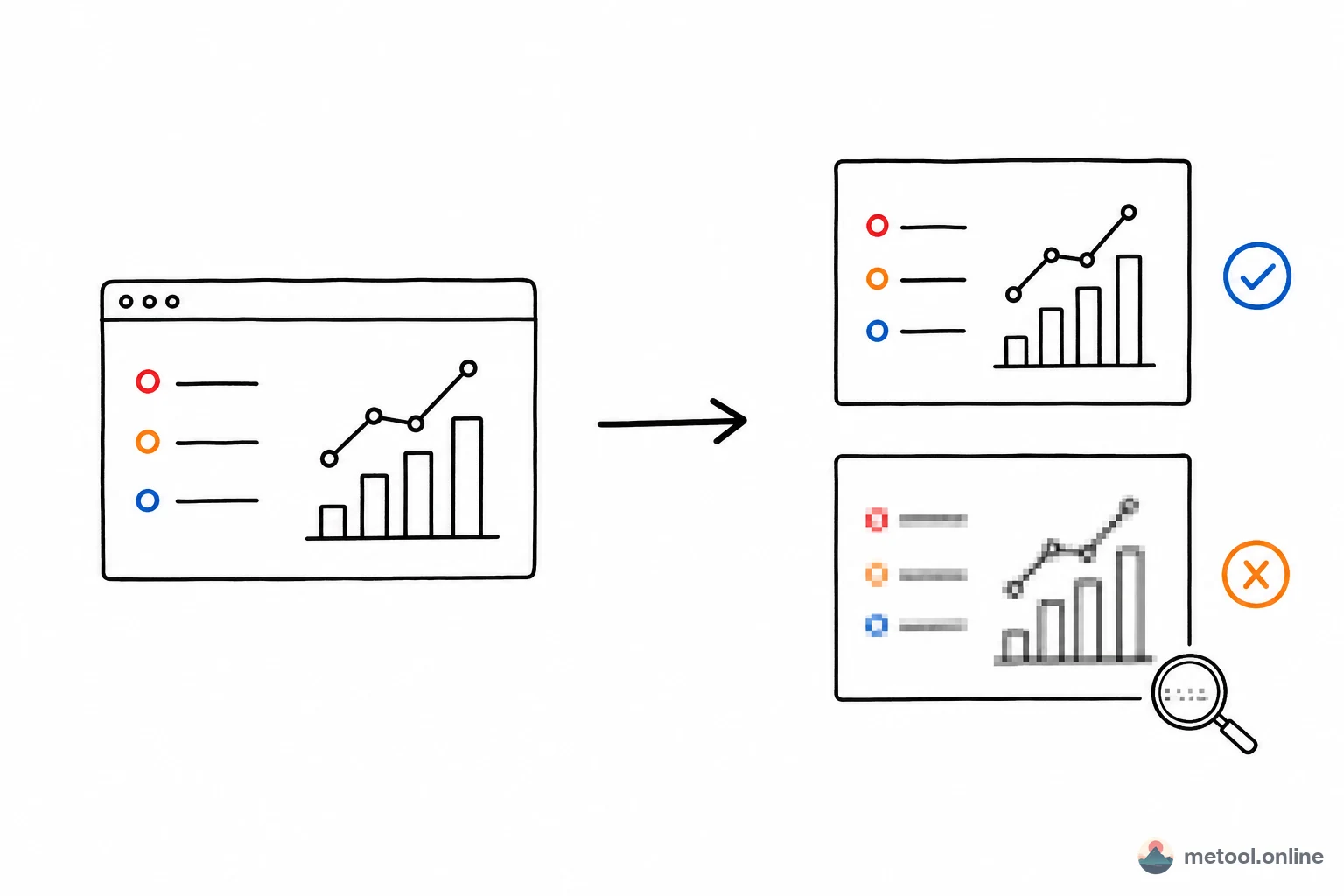
Why Convert PPT to Images Instead of Sending PPT?
Images open everywhere; PPT doesn't. Conversion turns a file needing Office/WPS (often broken on mobile) into static visuals any device shows.
Scenarios:
- Social: WeChat/Weibo/Xiaohongshu show images instantly; .pptx needs download + app, mobile layout often breaks.
- Mobile/tablet: no PowerPoint → images work; handy for handouts, menus, flowcharts.
- Reuse: video backgrounds, Word illustrations, web assets—need images, not editable decks.
"To images" isn't downgrade—it's slides as pasteable pictures. Question: how to export sharp without surprises.
PNG or JPG for PPT to Images?
Photos/small size → JPG; transparency or razor text/lines → PNG. Compression style drives the choice.
| Format | Compression | Best for | Typical size | Transparency |
|---|---|---|---|---|
| JPG | Lossy | Photos, gradients | Small (1/3–1/2 PNG) | No |
| PNG | Lossless | Solids, text, icons, lines | Large | Yes |
JPG shrinks photo slides for social; text edges may get slight halos, no transparency. PNG keeps text/blocks clean, supports alpha—design overlay, logo cutouts; 2–3× larger than JPG for same slide.
Rule: photo slides → JPG; text/chart/solid slides → PNG. Unsure and size OK → PNG avoids artifacts.
How Sharp? Scale and DPI
Key conclusion: 2× (~192 DPI) for screen share; 3× for print or enlarged detail. Blur follows export pixel density, not the PPT file itself.
Default PowerPoint export ~96 DPI—16:9 slide ~960×540—fine a decade ago, soft on today's screens and print. Render scale is integer multiple of slide size:
| Scale | Approx. DPI | 16:9 single slide | Use |
|---|---|---|---|
| 1× (standard) | ~96 DPI | 960×540 | Thumbnails, preview |
| 2× (HD) | ~192 DPI | 1920×1080 | WeChat/web, screen |
| 3× (super) | ~288 DPI | 2880×1620 | Print, projection, prepress |
1× → 2× quadruples pixels and roughly volume—don't max blindly; 2× balances for screens; 3× for print/projection/prepress.
When you need those scales, PPT to images offers standard / HD / super. Unlike PDF export, slides add a second failure mode: fonts that were never embedded drift. That difference is what this article owns.
Why Do Fonts and Layout Drift from the Original?
PPTX doesn't embed fonts by default. Without your typeface, renderer substitutes—different widths break wraps and alignment.
Common failure with custom fonts (Source Han, display, handwriting). Fixes:
- Embed fonts: PowerPoint File → Options → Save → embed fonts in file.
- Use system fonts: Microsoft YaHei, SimSun, Arial—lowest substitution risk.
- Check in PowerPoint/WPS before export—no missing-font warnings.
Animations, embedded video/audio, complex SmartArt simplify or vanish in static images—expected; dynamics can't survive a snapshot.
Old .ppt Format Won't Convert?
"Unrecognized" often means .ppt (pre-2007 binary), not .pptx—structure unlike modern XML zip; most browser tools parse .pptx only.
Fix: open in PowerPoint or WPS, Save As .pptx, then convert. If you only have a PDF and no slide file, use How to export PDF pages as sharp images—text versus scanned sharpness is a different rule set.
When Conversion Can't Help
Static generalization has limits:
- Need editable/clickable: images freeze—animations, links, embedded video gone. Keep PPT or linked PDF for interactivity.
- Missing fonts not fixed: without embed/substitute, every export drifts—source file issue.
- Huge decks (hundreds of slides): browser memory limits—very slow; batch export in desktop software.
Rule: static pasteable slides → images optimal; keep dynamics/editability → don't convert.
Summary
PPT to images makes slides pasteable. Three checks: JPG for photos, PNG for text or transparency; 2× for screens, 3× for print; embed or switch to system fonts before export. Save old .ppt as .pptx first. PDF-only files belong in the PDF article. This URL owns slides, not PDF page export.