Why Convert PowerPoint to Images?
PowerPoint is the standard for presentations, but images are often more practical: sharing a single slide on social media is easier as an image than as a file attachment; viewing slides on phones or tablets without PowerPoint requires an image format; and embedding slides into video, streaming backgrounds, or Word reports needs image assets.
MeTool's PowerPoint to image converter parses and renders PPTX files directly in your browser — no software to install, no files to upload, and your presentation stays private.
Key Features of MeTool PPT to Image
Multiple Render Resolutions
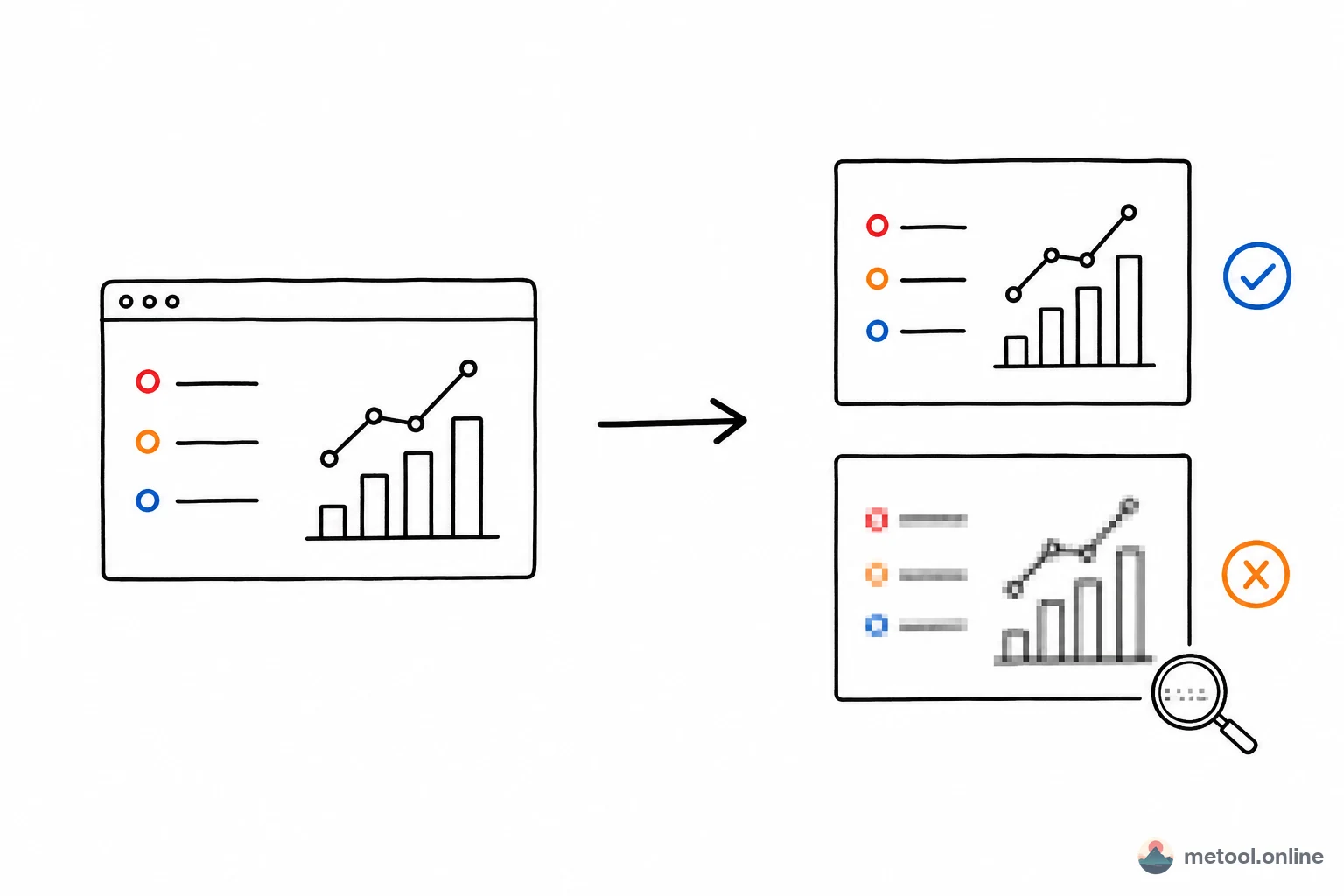
Choose from Standard (1×), High-res (2×), and Ultra-HD (3×) render scales. Standard works for general preview; High-res and Ultra-HD meet print-quality or detail-inspection needs.
JPG and PNG Output
JPG produces smaller files for sharing; PNG preserves transparency for design workflows.
Batch Export & ZIP Download
Export all slides as images in one click, then download individually or grab everything as a single ZIP file.
When do you need to convert PPT to images?
Sending a single slide instead of the whole deck
After a presentation, you might want to share just the conclusion slide in a team chat. Sending the whole PPTX forces everyone to open the full deck and hunt for it. Converting to an image lets it be previewed directly in the chat window.
Making a video thumbnail or livestream background
Many video creators use a specific slide as a video thumbnail or livestream background. Video editing software generally can't import .pptx directly, but image files drop right in.
Quick mobile viewing without Office
Students and employees often need to check a deck on a phone without Office or WPS installed. Once converted to images, it can be previewed directly in a photo gallery or chat app without installing anything extra.
Will animations and transitions be preserved?
No. Converting to images captures a static snapshot of each slide's current display state — entrance animations, transition effects, and embedded video are dynamic content that can't be preserved; only the final static layout of each slide is rendered. If you need the dynamic effects for a live presentation, keep the original .pptx file or export it as a video instead.
Frequently Asked Questions
Q: Can I upload a legacy .ppt file directly? A: Currently only .pptx is supported. If your file is legacy .ppt (PowerPoint 97-2003), save it as .pptx in PowerPoint or WPS first, then upload it.
Q: Will animations and embedded videos show up in the images? A: No, the result is a static image per slide — animation effects and embedded video are dynamic and won't be preserved, only the final visual layout.
Q: Does each slide become a separate image file? A: Yes, one image is generated per slide. You can download slides individually or grab everything at once as a ZIP.
Q: Will special fonts used in the slides look distorted after conversion? A: If you're using system-installed or common fonts, rendering is typically accurate. If the PPT embeds unusual custom fonts, the rendered result may differ slightly from how it looks when opened directly in PowerPoint.