Perfect in Word, wrong fonts and shifted lines in PDF. Many blame the converter. Word records font names, not font files, and wraps are computed from character widths. Understand that chain and you know what is avoidable and when to change approach.
Why Does Word-to-PDF Layout Drift?
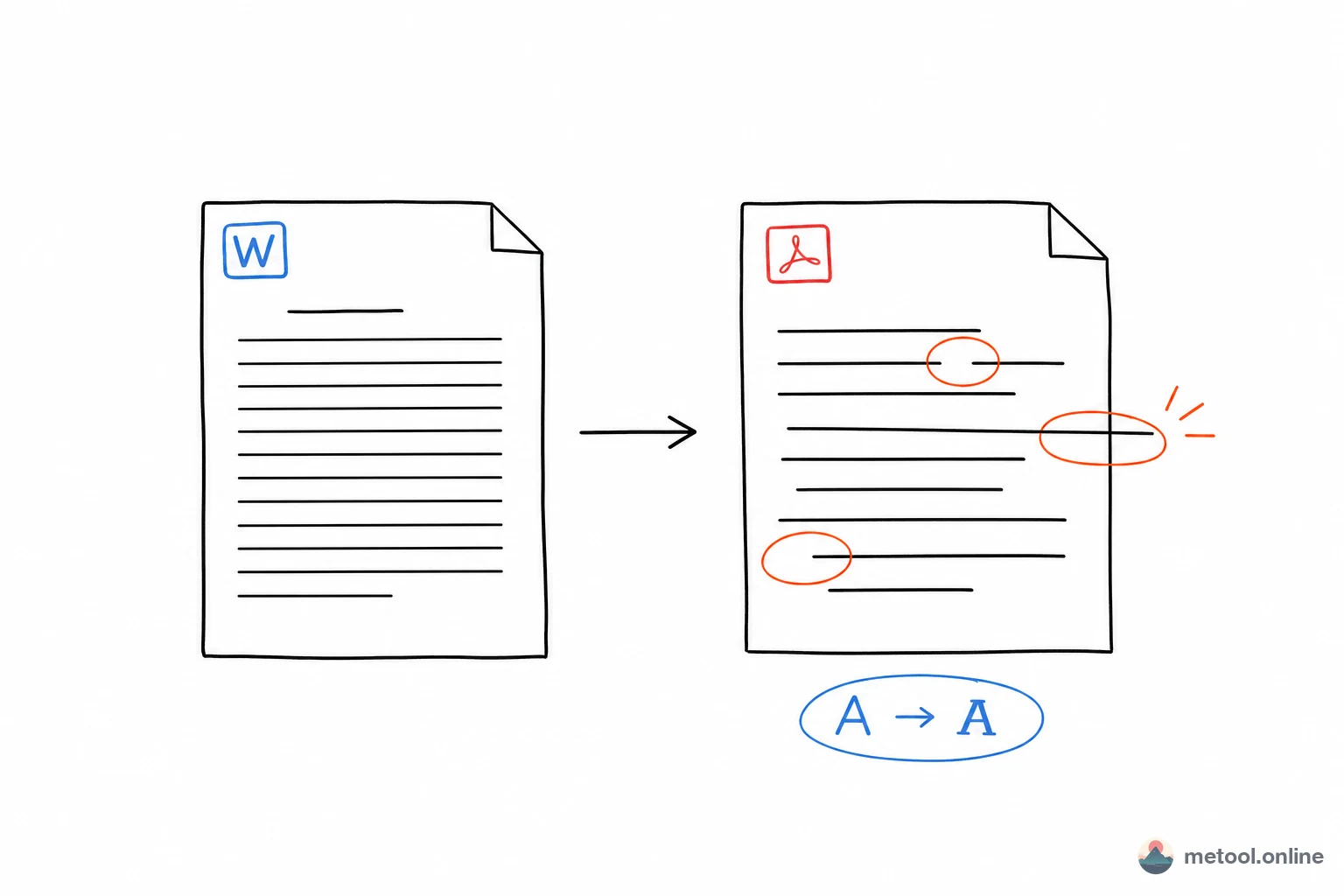
Because Word does not bundle fonts by default—only names. Your .docx says “use Font X” but stores the name, not the file. A converter on another machine or in the browser without that font picks a substitute—glyphs, weight, and especially character width change.
Wrapping and pagination are width-driven: the engine places characters until the line fills, then wraps. A wider or narrower substitute turns 30 characters into 28; the wrap moves; the rest of the paragraph cascades. “Layout broken” is usually that chain, not an independent pagination bug.
When you use Word to PDF, the checks below are cheaper before conversion than after you try to fix the PDF.
When Will It Almost Certainly Change?
Not every document breaks. Common fonts and structured layout stay stable; obscure fonts and space-bar alignment usually drift.
| Situation | PDF risk | Why |
|---|---|---|
| Body in SimSun / Microsoft YaHei / Arial | Low | The converter likely has the same names |
| Commercial or obscure font, not embedded | High | Substitution |
| Many manual spaces or tabs for alignment | High | Width change breaks alignment |
| Text boxes, WordArt, complex columns | Medium–high | Engines differ |
| Plain text, styles, tables | Low | Structured layout is more stable |
Styles, tables, and paragraph alignment beat spaces and display fonts for stability.
How Do You Maximize Fidelity?
Reduce uncertainty at the source:
- Prefer system fonts: Chinese—SimSun, Heiti, Microsoft YaHei; Latin—Arial, Times New Roman. Matching names are widely available.
- Embed fonts: Word Save / Options → embed fonts in the file. Some commercial licenses forbid embedding—then you must change the face.
- Avoid fragile layout: paragraph align, tables, and tab stops over runs of spaces; text boxes, floating images, and WordArt drift most across engines.
Word and PDF engines are not the same. Complex docs may still show small gaps—that is inherent to the conversion, not one vendor’s unique failure.
Why Do People Lock the Layout as Images When It Still Misaligns?
If the goal is “they must see exactly what I see” (poster layout, a rare font, a signature block), stop fighting substitution: rasterize each page. Fonts and spacing become pixels; missing fonts on their machine cannot reflow the page. The cost is no text selection and a larger file—fine for view-only fidelity, not for copy or further edits. When you need to do it, any Word export that can render pages to images works; this article does not take “Word to long image” as a second primary query.
If the source is already Markdown, delivery pitfalls are How do you deliver Markdown as Word or PDF?. Do not switch writing formats inside this article to “avoid fonts.”
Summary
Word-to-PDF drift is names not files → substitution → widths change → wraps cascade. Use common fonts, embed them, and stop building layout with spaces and text boxes. Absolute fidelity means images, and no more selectable text. This URL owns “why it changed and how to change less,” not the navigational query “online Word to PDF,” and not a Markdown writing tutorial.