Double-click an
.htmlsomeone sent and get a wall of tags, or empty image boxes—not because the file is corrupt..htmlis webpage source; a browser must render it. Separate “I can read the text” from “I can see the page,” and opening and preview have a path.
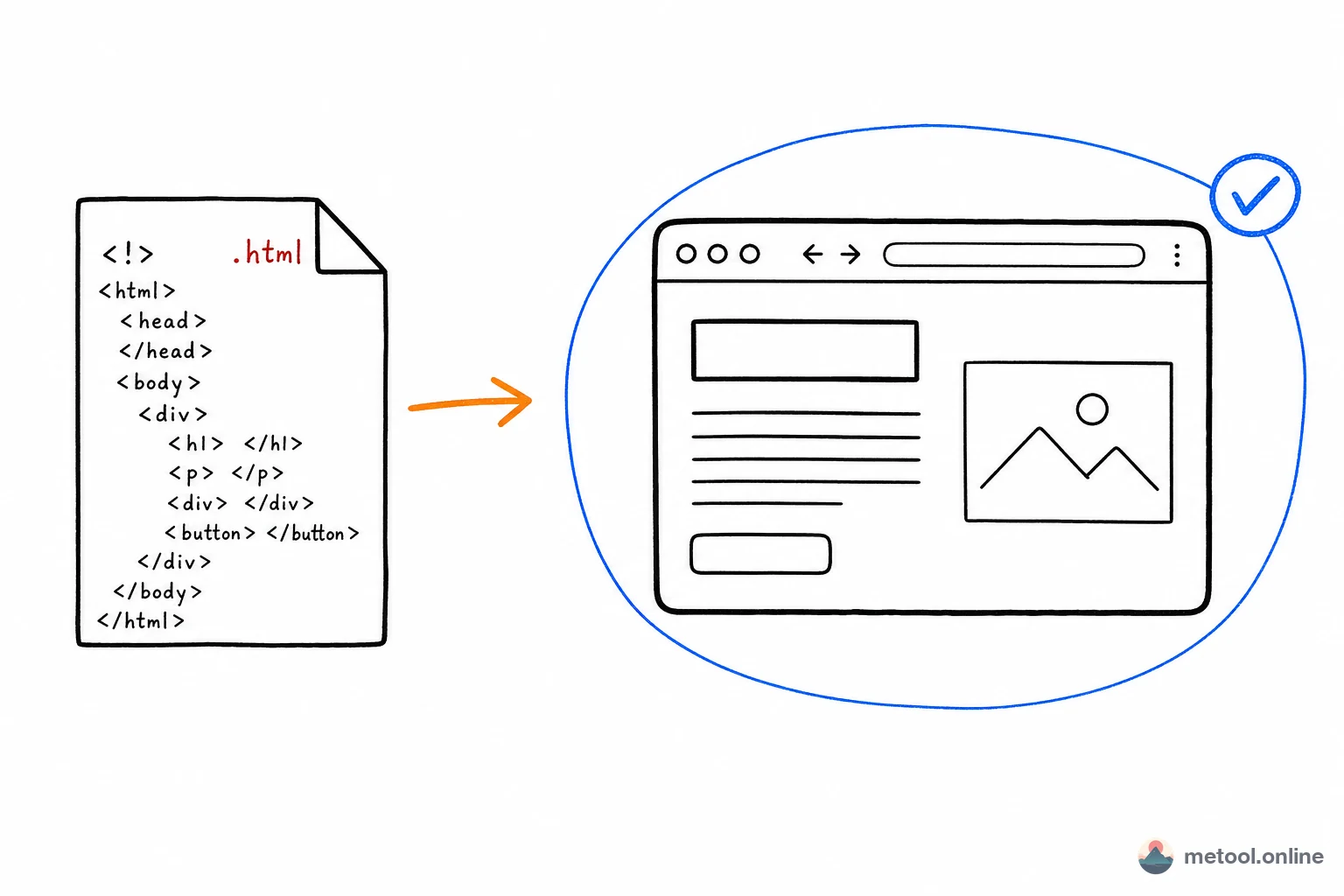
What Is an .html File, and Why Does Double-Click Fail?
An .html file is webpage source—tagged plain text describing headings, paragraphs, images, and buttons. A browser must parse it before you see layout.
Code on double-click almost always means the file is associated with a text editor (Notepad, VS Code, Sublime), not a browser. The OS shows source honestly. Fastest fix: right-click Open with → browser, or drag the file into Chrome / Edge / Safari.
Even in a browser, a single .html from someone else often hits two problems: broken images (paths point at files not on your machine), and missing styles or buttons (CSS or JS was not bundled with this file). You need a stable preview, not “different software.”
Changing copy or images without writing code is Do I re-prompt to edit an AI-generated page?. This article is only opening and looking.
What Happens If I Double-Click .html on Windows?
If Windows gave .html to VS Code or Notepad, a double-click is tags and attributes—it looks like “the webpage will not open.” If the default is still Edge or Chrome, you get a browser—and external images or styles can still break. None of that is a bad file.
Change the default: right-click → Open with → choose a default app → a browser. For a one-off look, leave the association and drag the file into a browser window.
What Happens If I Double-Click .html on a Mac?
A Mac sometimes opens Safari (the render you want) and sometimes TextEdit (source). After an editor is set as the default, a double-click is code, not a page. Same rule as Windows: opening is not rendering.
If the Mac refuses to open the file, use Open With → TextEdit and check for text. <html> or readable sentences mean the file is fine.
Are a Wall of Tags or Broken Images Corruption?
Tags are not corruption. Notepad and VS Code do not render HTML, so <h1>Title</h1> stays tags. Broken images are usually paths: src="images/a.png" without the images folder sent along, or an absolute path that existed only on the author’s machine.
Corruption looks different: the text app opens nothing, a blank buffer, or replacement characters. If you can still read tags and words, you have not rendered yet, or resources are missing.
How Do I Preview the Page, Including Phone Width?
A real page needs a browser. Pick one:
- Local browser: drag
.htmlinto a window. Images and CSS in the same folder with correct relative paths will show. - Web preview with viewports: paste or import, see the render, switch to about 375px / 768px for phone and tablet. Fits “one look, and I care about a narrow screen.”
- Read the words only: a text editor is enough if appearance does not matter.
Without fighting file associations, online HTML preview is path 2: import, see the render, switch widths. This article does not walk visual editing or share-link generation.
HTML from an unknown sender can include scripts. A local double-click runs the page in your browser; a preview in a restricted sandbox is safer. For attachments you do not trust, read the source before you render.
Summary
An .html that “won’t open” or shows code is an editor association, or missing sidecar images and styles—not a corrupt file. Windows and Mac can both double-click into a text app; use a browser or a viewport preview for layout. Editing and circulating the file belong in other articles, not this opening problem.