Send a few PDF pages on WeChat, stitch a long image for social, or pull assets for PPT/video—PDF attachments get ignored, screenshots are blurry with white borders. Converting PDF to images is the universal fix—know text vs. scanned, pick format, set enough resolution. Get those three right and exports stay sharp and reusable.
Why Convert PDF to Images Instead of Sending PDF?
Images are glanceable; PDFs are formal documents to open. Conversion turns a file needing a reader into pixels that show inline in chat, feeds, and web pages.
Scenarios:
- Social share: WeChat, Weibo, Xiaohongshu show images instantly; PDFs need download + reader—lower engagement. Long-image posts require images.
- Reuse: PPT slide inserts, video background frames, web illustrations—need image assets, not whole PDFs.
- Annotate/crop: circle regions or crop areas—easier on images in any editor than inside PDF.
Conversion isn't downgrade—it's changing content from "document" to "picture." Remaining question: how to convert sharp and correctly.
Text vs. Scanned PDF—What's Different in Output?
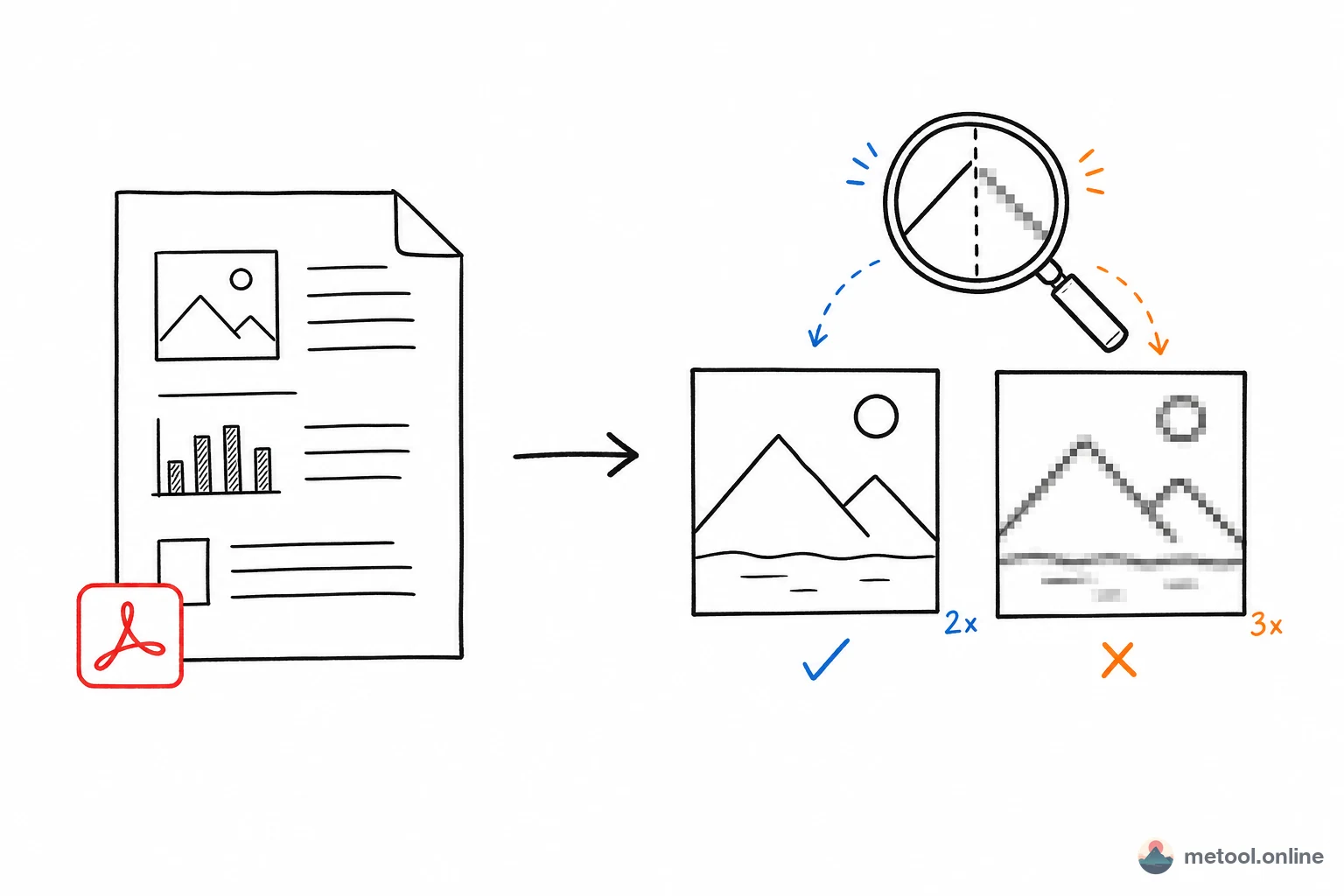
Key split: text PDFs re-render—sharpness follows your resolution setting; scanned PDFs change container only—ceiling is original scan quality. That's the root of blur vs. sharp.
| Type | Internal content | Output sharpness depends on | Can you improve sharpness? |
|---|---|---|---|
| Text (Word/web export) | Text + vectors | Your render scale | Yes—higher scale = sharper |
| Scanned (camera/scanner) | Bitmap per page | Original scan resolution | No—upscaling only stretches blur |
Text PDFs store scalable vector descriptions—rasterize at your chosen density and you get real detail at 3×. Scanned PDFs are fixed-resolution photos in a PDF wrapper—output can't exceed source; 3× just enlarges blur.
Tell them apart: selectable/copyable text in a reader = text PDF; whole-page selection like an image = scanned.
PNG or JPG for PDF to Images?
Text/tables/lines → PNG; photos/scans/gradients → JPG. Difference is compression style and suited content.
| Format | Compression | Best for | Typical size | Transparency |
|---|---|---|---|---|
| PNG | Lossless | Text, tables, icons, solids | Large | Yes |
| JPG | Lossy | Photos, scans, gradients | Small (1/3–1/2 of PNG) | No |
PNG keeps text/lines crisp—no compression halos, supports transparency—default for docs, contracts, charts. JPG efficient on continuous tone—good for scan-heavy pages; sharp text edges may get slight artifacts, no transparency.
Practical rule: text/table pages → PNG; photo/scan pages → JPG. When unsure and a few hundred KB don't matter, PNG is safer.
How Sharp? Scale and DPI
Key conclusion: 2× (~192 DPI) for screen share; 3× for print or zoomed detail. Text PDF blur depends on rasterization pixel density.
PDF has no native "resolution"—conversion must pick pixels per page. Scale is integer multiple of page size:
| Scale | Approx. DPI | A4 single page | Use |
|---|---|---|---|
| 1× (standard) | ~96 DPI | ~794×1123 | Thumbnails, quick preview |
| 2× (HD) | ~192 DPI | ~1588×2246 | WeChat/web, screen viewing |
| 3× (super) | ~288 DPI | ~2382×3369 | Print, detail, prepress |
Higher scale = bigger files—1× to 2× quadruples pixels. Don't max blindly—2× balances clarity and size for screens; 3× for print/projection/prepress. Only helps text PDFs—scanned caps at source; higher scale only bloats.
When you need those scales in a browser, PDF to images offers standard / HD / super with JPG or PNG. If you have slides rather than a PDF, see How to export PPT slides as sharp images—do not share this URL’s “one page, one image” query.
What Do You Lose After Converting to Images?
Conversion generalizes static visuals at a cost:
- Selectable/searchable text: becomes pixels—no copy, no Ctrl+F, no search indexing. Keep PDF or OCR separately if text matters.
- Hyperlinks and bookmarks: dead in images.
- Infinite vector clarity: text PDFs scale forever; images fix at export resolution—zoom beyond that blurs.
When not to convert: recipient needs edit, search, clickable links, or lossless zoom—keep PDF. When you need static visuals everywhere, images are optimal.
Summary
PDF to images turns documents into glanceable visuals. Three checks: text vs. scanned (you set sharpness vs. the scan’s ceiling); PNG for text, JPG for photos/scans; 2× for screens, 3× for print. You lose selectable text, links, and lossless zoom—keep PDF when those matter. Slide-by-slide export lives in the PPT article; this URL owns PDF only.