Human–AI cowriting only holds if the assistant is aimed at this page — open the tool, click Connect your AI, then hook in the assistant you already use. Reverse order can be fixed. Connecting the assistant with no page still leaves it with nowhere to send data.
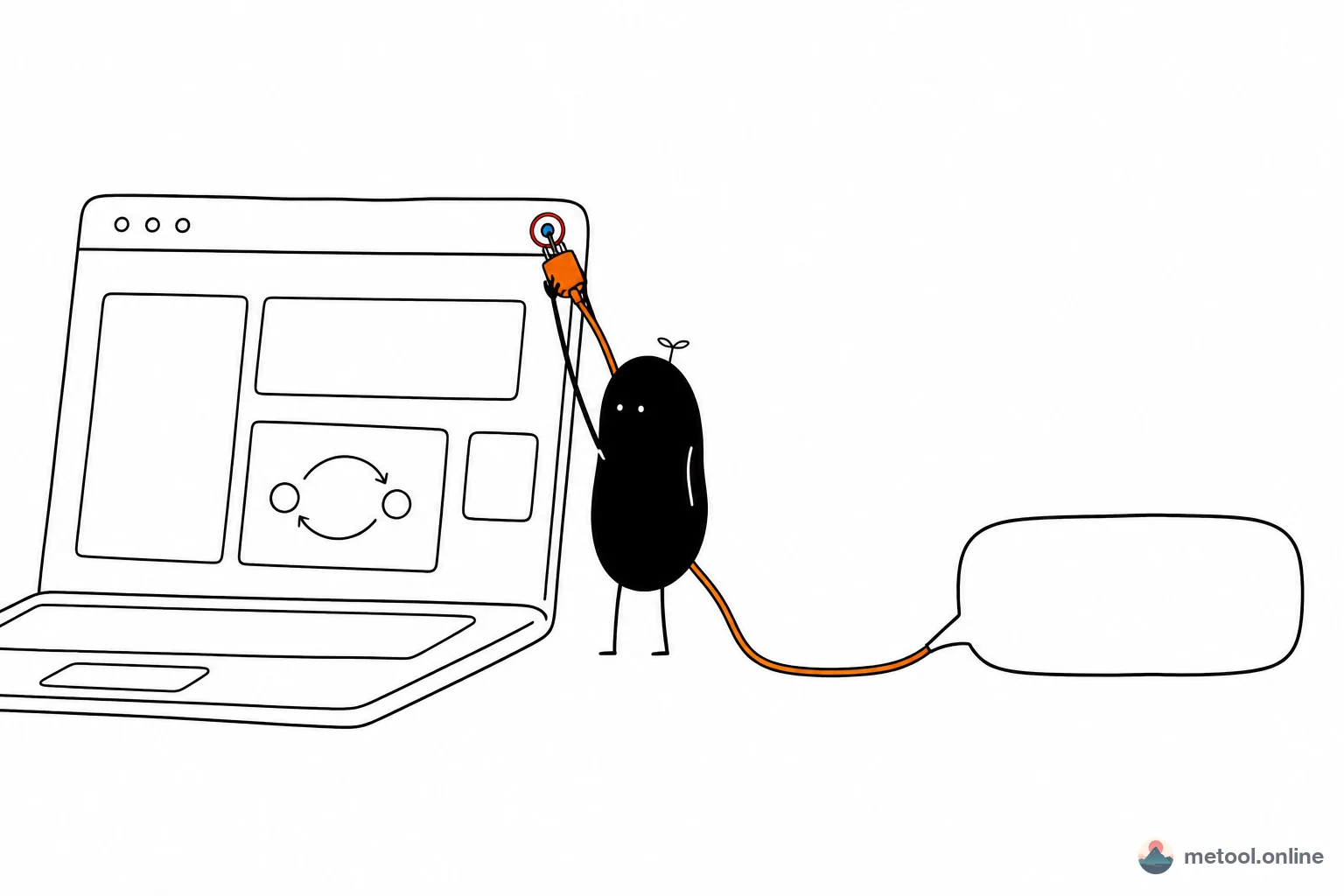
Why this order, and how cowriting differs from letting AI finish alone, is in What is human–AI cowriting?. This article is only how to do it.
What are the steps?
There are only three steps, and the order is not optional: pick the page you will cowrite on, connect on that page, then hook in the assistant.
- Open a tool page — choose the page you will hand to the AI.
- Click Connect your AI — tell the system: work on this page.
- Hook in the assistant and go back to the chat — follow the setup if you have not connected yet; if you have, just say what you want.
The hub draws those three steps on one line. Glance at it before you start:
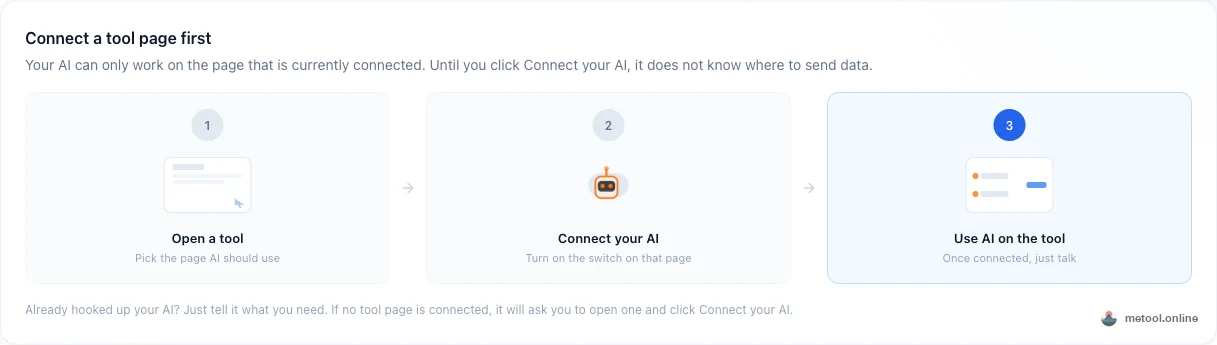
If you have not picked a page yet, start at Let Your AI Use MeTool. Connected tools are listed below. Do not start by editing the assistant’s settings — with no destination, a connection cannot aim at a page.
Step 1: Which tool page should you open?
Open the page you will actually edit, not a random home screen. The pages worth cowriting on right now are the ones with a live preview:
| What you want | Open this page | How cowriting works on it |
|---|---|---|
| Slice long notes into Xiaohongshu cards | Markdown to Xiaohongshu cards | Edit pagination against the card preview |
| Turn an SOP / tutorial into knowledge cards | Markdown to Xiaohongshu | How to lay out knowledge cards |
| Write Markdown and see tables and lists | Markdown editor | See live layout while you cowrite |
| Flowcharts and structure diagrams | Mermaid diagrams | Fix a flowchart against the preview |
| Send a formula from notes to someone else | Markdown LaTeX formula | Send it without it turning into code |
| Check one homework formula | LaTeX formula editor | Check immediately when you cannot write LaTeX |
| Edit a LaTeX paper and compile a PDF | LaTeX editor | Compile on the same page after the edit |
| Large HTML edits, and you need to see layout | Visual HTML editor | See the page as it changes |
Keep the page open. The connection follows this tab, and what the assistant writes lands in this page’s preview.
Step 2: Where do you click Connect your AI?
The switch is on the tool page, not inside the assistant app. After the page loads, find Connect your AI and turn it on. When it is off it usually says Not connected.

This step has one job: name the destination. After it is on, the assistant knows to write to this page. Changing assistant settings before you flip the switch is the usual stuck point — the assistant is connected and still has nowhere to send work.
If you are unsure what the switch does, open the info next to it. You will see the same three-step diagram as the hub:
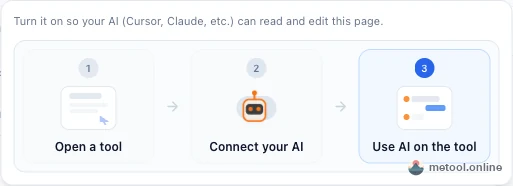
If you are asked to sign in, sign in; the switch continues when you come back. After you connect, do not close this tab, and do not jump to another page right away. Only one page is aimed at a time.
Step 3: What do you do in the dialog if the assistant is not hooked up yet?
After the page connects, a setup dialog opens. If you have not hooked an assistant into MeTool, prefer the softly pulsing Copy for your AI button. Paste the note into the assistant you already use and let it finish the setup.
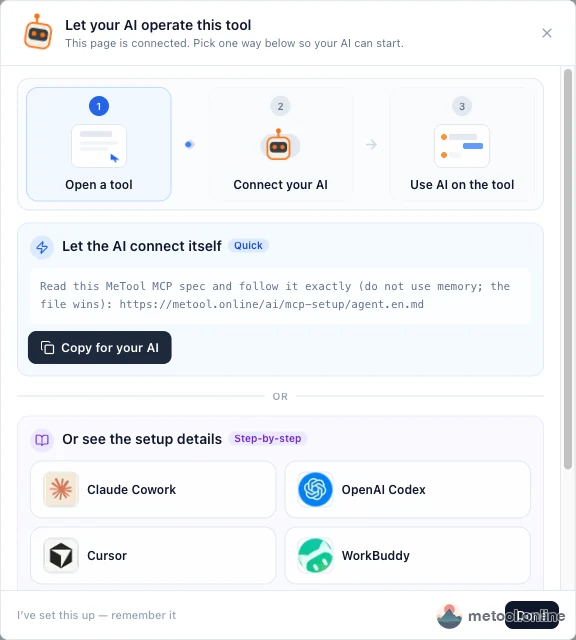
You can skip the copy and read the guide for your assistant instead. The dialog and the list below are the same set of instructions — pick the one you actually use:

Menus differ by assistant. What you do does not:
- Give the note to the assistant, or open the matching guide.
- When the browser asks you to sign in and approve, approve.
- If it asks whether to open the app, you must confirm. Otherwise the assistant never gets the grant and stays disconnected.
- Go back to the original chat and say what you want.
If you have already done this once, mark I’ve set this up in the dialog so it bothers you less next time. After that, just give instructions in the chat.
How do you start cowriting once it is connected?
Talk to the page that is already open and connected. Do not start a separate thread that has nothing to do with the page. Cowriting is the loop of assistant writes, preview updates, you restating the direction.
You can say things like this (swap for the page you opened):
- Xiaohongshu cards: “Split this note into 4 cards. Make card 2 shorter. Sound like spoken notes.”
- Flowchart: “Draw the path from topic to publish. Change step 3 to a human review.”
Watch the preview. If it is wrong, point at which card or which step and have it change only that. You own direction and details; the AI speeds the next write — that is cowriting in practice.
Export and download still happen on the page. The assistant can trigger a save, but looking before you download is your control, not handing the whole product to a background job.
If you are stuck, how do you recover?
Most stalls are not a broken assistant. A step is still misaligned.
| What you see | Usually | How to recover |
|---|---|---|
| The assistant cannot reach a tool or does not know where to write | The tool page is not connected | Open a page, click Connect your AI, keep the tab |
| You approved, but the assistant still says it has no grant | You did not confirm Open the app | Go back, click Open, then start a new chat |
| You switched pages; it still edits the old one | Only one page is aimed at a time | Connect again on the new page |
| You closed the tab, then talked, and nothing happened | The connection died with the tab | Reopen that page and connect again |
| You hooked up the assistant first, then looked for a tool | Reverse order, but recoverable | Tell the assistant to have you pick a page and connect |
Hooking up the assistant first is not a dead end. Tell it you have not connected a tool page; it will ask you to open one. Why a human still has to steer against a preview is in What is human–AI cowriting?.
Takeaway
Letting your current AI operate a web tool is not a pile of settings first. Give it an open page. Open a tool → click Connect your AI → hook in the assistant if needed → talk to that page. With the page and the connection present, cowriting has a mid-process product you can see and change. Without the page, a clever assistant still has nowhere to write.