Why Adding Watermarks to Images Matters in 2026
In 2026's internet landscape, image theft is an increasingly serious problem. Your carefully shot photographs, original illustrations, and knowledge infographics can be reposted, repurposed, or even commercialized without authorization within hours of publishing. Adding watermarks is one of the most direct and effective ways to protect image copyrights.
Beyond copyright protection, watermarks play an important role in brand promotion. Many businesses and content creators add brand logos or account information as watermarks, naturally gaining brand exposure as images are shared and circulated across the web.
MeTool's image watermark tool supports both text and image watermarks with flexible controls for opacity, size, angle, and tiling patterns. Your watermarks effectively mark copyright without overly compromising the viewing experience. All processing runs locally in your browser — original images are never uploaded to any server.
Key Features of MeTool Image Watermark Tool
Text & Image Watermarks
Add custom text as a watermark (with configurable font, color, and size), or upload a logo or custom image as the watermark. Choose between the two modes based on your needs — whether for copyright protection or brand promotion.
Precise Opacity Control
Watermark opacity is adjustable from 0% (fully transparent) to 100% (fully opaque). Find the perfect balance that marks your copyright while keeping the main image content unobstructed — achieving just the right watermark effect.
Angle & Tiling Mode
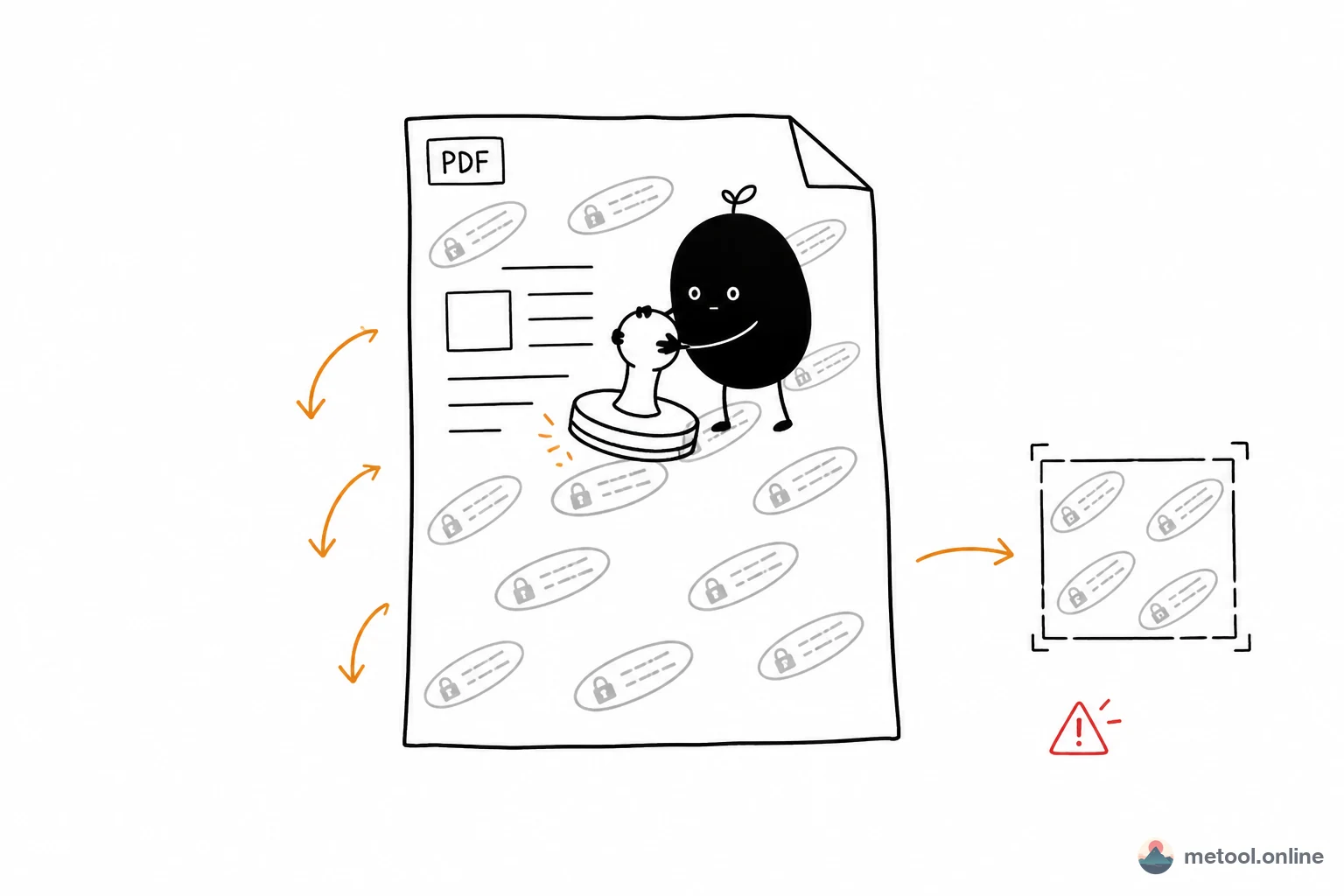
Rotate watermarks to any angle — the classic 45-degree diagonal tiling effectively prevents removal by cropping. When tiling mode is enabled, watermarks are distributed in an even grid across the entire image, making them virtually impossible to fully remove even with partial cropping.
Batch Watermarking
After uploading multiple images, apply uniform watermark settings for batch processing. Add watermarks to dozens of images in one pass — especially valuable for e-commerce sellers and photographers batch-processing product photos and portfolio images.
How to Add Watermarks with MeTool
- Open the Tool: Visit MeTool's image watermark tool page — no registration required, ready to use.
- Upload Images: Drag and drop the images you want to watermark into the upload area. Supports JPG, PNG, WebP, and more. Batch upload is available.
- Configure Watermark: Select the watermark type (text or image), then set the content, size, opacity, angle, and position. Enable tiling mode to spread watermarks evenly across the entire image. Real-time preview ensures you're satisfied with the result.
- Download Results: Once the watermark looks right, click the download button to save your watermarked image — or use "Download All" to batch-export all processed images.