Sharing a contract, an unfinished proposal, or an internal course pack often goes wrong when the recipient treats it as “OK to forward” or “already final.” A visible Confidential / Draft watermark is not encryption—it keeps document status visible after screenshots and forwards. Pick the right text, tiling, and page range, and avoid the CJK glyph trap, and the mark actually helps.
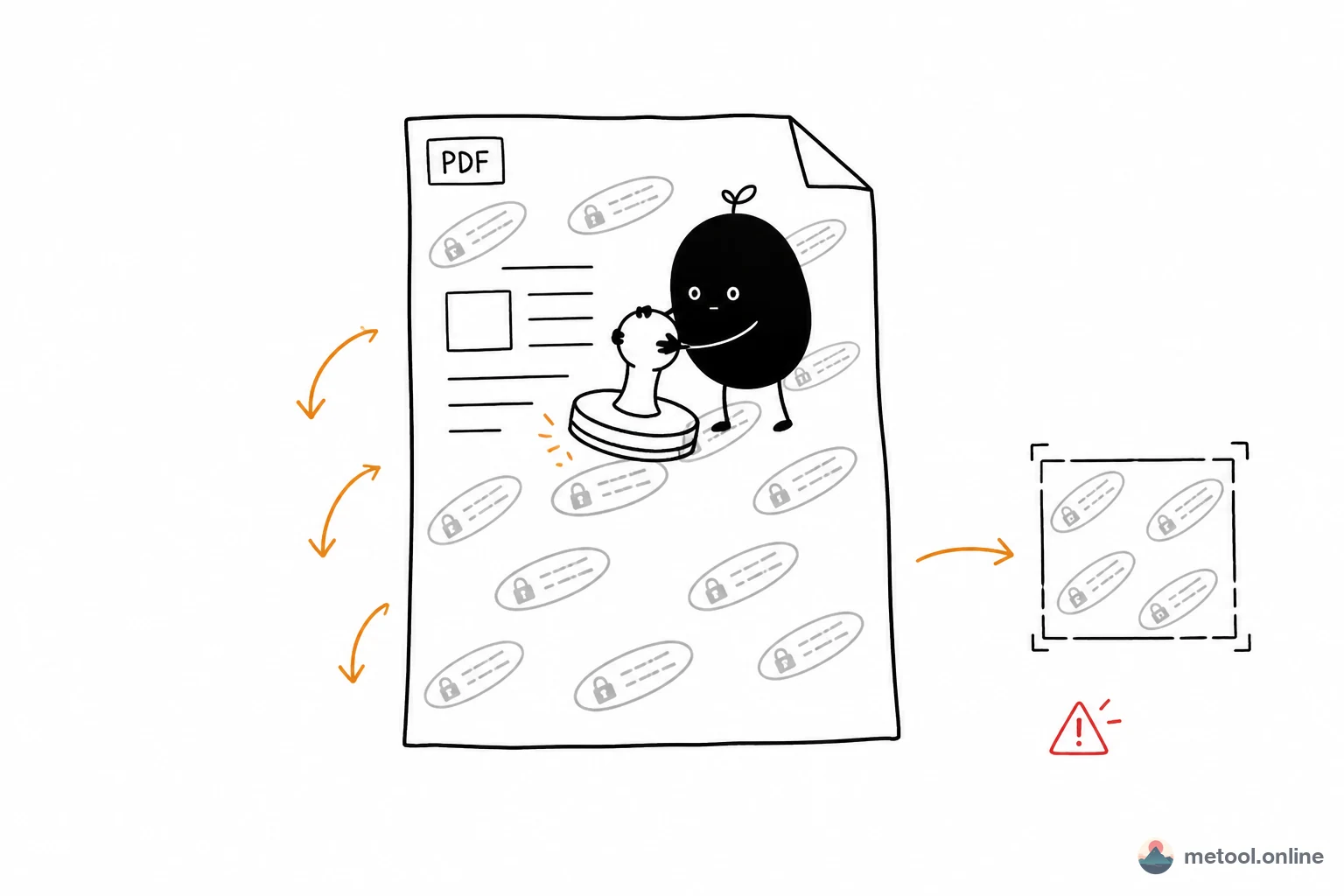
What Can a PDF Watermark Prevent—and What Can It Not?
A visible watermark mainly reduces misuse and accidental sharing: after someone forwards, screenshots, or prints the file, they can still see Confidential / Draft / Internal Only at a glance. It does not stop deliberate editing—skilled users can strip the overlay or crop pages with desktop tools—so never treat it as DRM or your only leak-control measure.
Office needs usually fall into three buckets:
| Need | Typical copy | What the watermark should achieve |
|---|---|---|
| Limit circulation | Confidential, Internal Only | Still obvious in a screenshot; fewer “send as a normal attachment” mistakes |
| Mark version state | Draft, Not for distribution | Less chance of being quoted or priced as final |
| Brand attribution | Logo, company short name | Recognizable in a corner without burying the body |
Unlike invisible image watermarks, office PDF work almost always uses a semi-transparent visible mark. Invisible / blind watermarks fit image provenance (see how blind watermarks work); they do not help someone “see Draft at a glance.”
Text Watermark vs Logo—When to Use Which?
Use text for status (Confidential, Draft); use a logo for ownership (company or course brand). You can use them in different situations—you do not have to force both into one pass.
Text wins on meaning: the word Confidential is harder to ignore than a small corner icon. The cost is more visual noise—you must restrain size, opacity, and tiling. Logos disturb the page less and suit public white papers or brochures, but a logo alone rarely answers “draft or final?”
A practical split:
- Contracts / proposals under review: text Confidential or Draft, light tiled pattern.
- Shareable but branded materials: corner logo at lower opacity.
- Image assets (not a PDF): an image watermark tool is more direct; whole PDF documents should use a PDF watermark flow.
Why Do CJK “Confidential” Marks Often Break?
Root cause: many PDF standard fonts simply have no CJK glyphs. If a tool calls drawText("机密") with a Helvetica-class font, you get tofu boxes—or a hard write failure.
Two common workarounds:
- Canvas text → transparent PNG → stamp on pages (good for short labels): the browser draws CJK with system fonts, then the PNG is overlaid. You avoid shipping multi‑MB CJK fonts; short Chinese / Japanese / Korean labels stay reliable. The tradeoff: the watermark is a bitmap, so extreme zoom is slightly softer than true vector type.
- Embed a subsetted CJK font: real vector glyphs, sharper in print, but you pay in font size and licensing—often overkill for four characters.
For short labels like Confidential / Draft / Internal Only, path 1 usually wins on cost. The PDF watermark tool follows that approach: type CJK directly, tweak opacity / rotation / tiling in live preview, then export the stamped PDF.
Tiling, Single Placement, and Page Ranges Without Ruining Readability
Decide the goal first, then tune parameters—cranking font size to the max rarely helps:
| Goal | Preferred mode | Starting settings |
|---|---|---|
| Survive cropping | Tiled | Opacity ~0.15–0.25, rotation −30° to −45° |
| Comfortable reading | Single (center or footer) | Slightly larger type, slightly lower opacity |
| Cover warning only | First page only | Tile or center on the cover |
| Body yes, appendix no | Custom ranges like 1-3,5 |
Preview before export |
Tiling’s value: crop a corner or half a page, and a fragment of Confidential may still remain. A single mark reads cleaner but can vanish entirely when cropped. Page ranges solve “cover yes, body no” or “skip the appendix”—do not default to stamping every page blindly.
In practice: preview the current page while you adjust, keep marks off key clauses and signature blocks, then export. If a huge scan needs sliming first, run PDF compression; to peel off a few pages for a Confidential-only pack, use PDF merge & split.
Boundaries: Encrypted PDFs, Print Sharpness, and No “Technical Lock”
Know these limits up front so you do not blame the tool:
- Encrypted / password-open PDFs: most pure browser tools cannot rewrite them—remove protection locally, then watermark.
- Bitmap text watermarks: fine for screen reading; only chase embedded fonts when you need print-grade vector sharpness.
- Marks can be removed with pro software: a visible overlay is not an access-control system. Real control lives in sharing channels, accounts, or a document management system.
- Already-blurry scans: a watermark only adds clutter—fix readability first, then label.
Bottom line: a watermark is a status label, not a copy-protection lock. Use it to cut mis-sends and mis-quotes; that matches what it can actually do.
Takeaway
Stamping Confidential / Draft on contracts and proposals is about keeping status visible after forwards and screenshots. Use text for status and logos for ownership; for CJK, use a path that can draw those glyphs (Canvas stamp or embedded fonts) instead of Latin-only standard fonts; tile to survive crops, use page ranges to control coverage, and opacity around 0.15–0.25 is often enough. When you are ready to apply it, add a PDF watermark with local preview and export in the browser—sensitive files do not need to be uploaded to a random online service first.