PDF Watermark

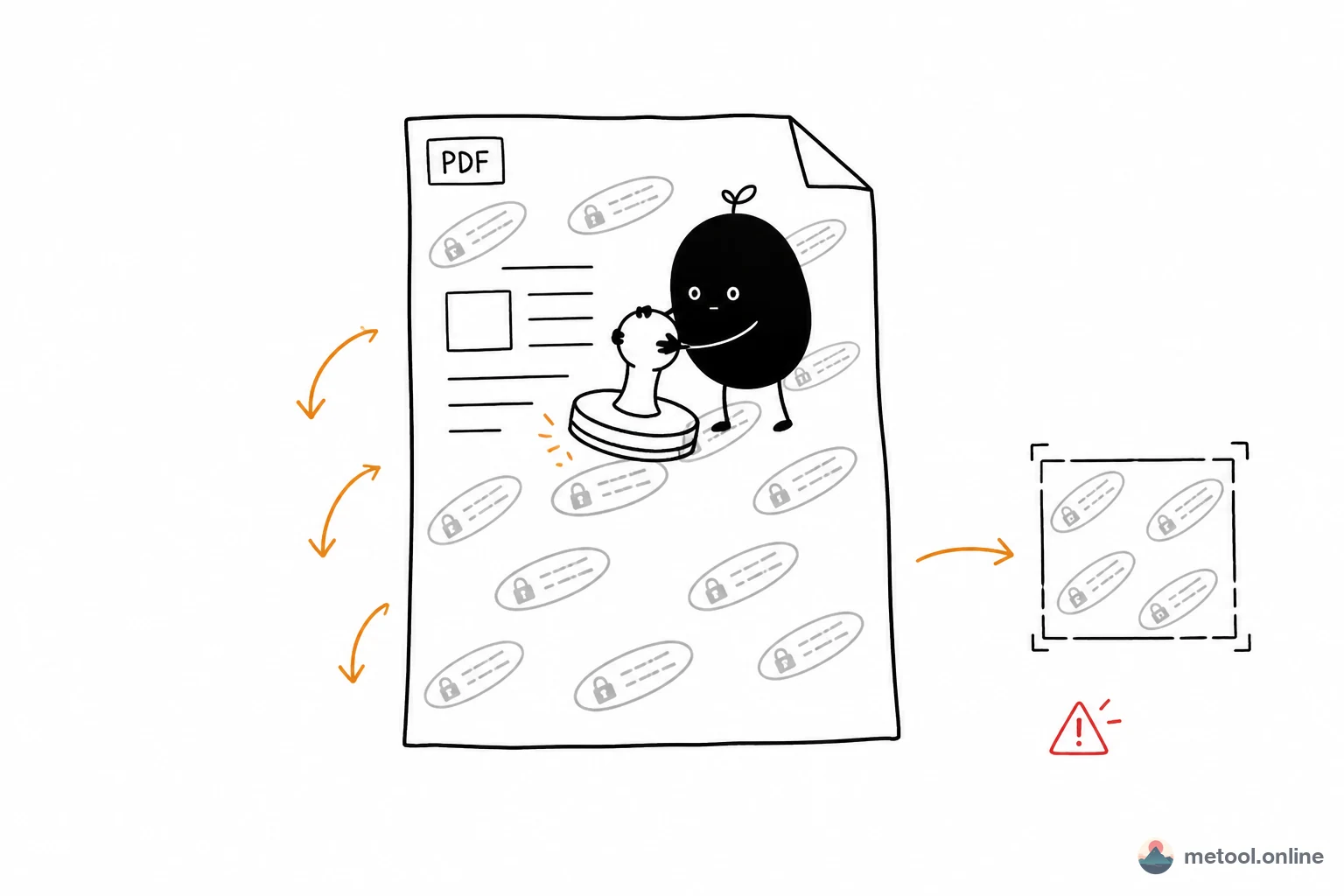
Add Draft / Confidential text watermarks or a logo to PDF files in your browser. Adjust opacity, rotation, tiling, and page ranges. Fully local — no uploads.

Upload PDF

Drop a PDF here, or click to select

What You Can Do With It?

Mark Contracts Confidential

Stamp confidential marks before sharing agreements for review

Label Draft Reports

Keep unfinished decks and memos clearly marked as drafts

Control Internal Docs

Tile “Internal Only” across policies and training packs

Separate Review Versions

Use different watermarks to show review status across versions

Brand with a Logo

Place a company logo watermark without burying the content

Protect Course Packs

Tile attribution across lecture PDFs to discourage resharing

How To Use?

1

Upload PDF

Drop or select the PDF you want to stamp

2

Configure Watermark

Enter Draft / Confidential text or a logo; set style and pages

3

Download

Preview, then download the watermarked PDF

Related Tools

PDF Compress

Free online PDF compressor — exceptionally effective for image-heavy and scanned PDFs, often shrinking multi-MB scans to 10%-30% of original size. Two-stage smart compression, 100% browser-local, no uploads.

PDF to Images

Free online PDF to image converter. Export every PDF page as a high-quality JPG or PNG. 1×/2×/3× render resolution, batch export as ZIP. All processed locally in your browser — no uploads, fully private.

PDF Merge & Split

Free online PDF merge and split tool. Combine multiple PDFs with drag-to-reorder, or split by page ranges into separate files. 100% browser-local processing — no uploads, full privacy.

Watermark

Free online image watermark tool. Add text or image watermarks with adjustable opacity, size, angle, and tiling. 100% browser processing.

Invisible Watermark

Add invisible watermarks to images that the eye can't see — protect against theft and trace unauthorized sharing. Two modes: hide custom text, or add a rotation/scaling-proof password fingerprint. Batch processing, password protection, one-click verification. Images never leave your browser.

Word to PDF

Convert Word to PDF instantly, preserving layouts, fonts, and images perfectly. No software needed, convert directly in your browser. Secure and reliable - your documents never touch our servers.

Images to PDF

Free online image to PDF converter. Upload multiple JPG/PNG/WebP images, set page size and margins, and merge them into a single PDF in seconds. All processed locally in your browser — no uploads, fully private.

View more

Tell us what you want, AI will help you realize it

This site is built together with its users — your suggestion will be turned into a real feature by AI. See what everyone's hoping for, vote, follow, and help make it happen.

Sign in to submit requests, upvote, and comment

Frequently Asked Questions

Yes. Text watermarks are drawn with the browser Canvas API, then embedded as images — Chinese, Japanese, and other scripts work without uploading font files.

Why add a watermark to a PDF in 2026?

Contracts, drafts, and course packs often need an obvious Confidential / Draft / Internal mark before they leave your device. Desktop apps are heavy; many online tools upload your file. MeTool’s PDF watermark tool stamps text or a logo entirely in the browser, with live preview and page-range control.

Reliable CJK “Confidential / Draft” marks

Standard PDF fonts cover Latin glyphs only, so drawing Chinese with drawText often fails. This tool renders watermark text on a Canvas (using system CJK fonts), then embeds a transparent PNG on each page. Short labels like 机密 / 草稿 work without shipping multi‑megabyte font files.

Typical scenarios

Contracts before external review

Tile a light “Confidential” mark so screenshots and forwarded copies stay clearly marked.

Draft reports and proposals

Label unfinished decks and memos as Draft so they are not quoted as final.

Internal training and policies

An “Internal Only” tile raises the cost of casual resharing without burying the content.

Page ranges and live preview

Apply to all pages, the first page only, or custom ranges such as 1-3,5. Preview and export share the same geometry for position, rotation, and tiling—adjust opacity and see the result before download.

FAQ

Q: Can I still select text after watermarking?
A: Usually yes. The tool overlays a semi-transparent layer instead of rasterizing whole pages.

Q: What about encrypted PDFs?
A: Not supported in the first version. Remove the password locally, then upload.

Q: Are files uploaded?
A: No. Parsing, preview, and writing all stay in your browser.