Fastest Way to Convert iPhone MOV to MP4 in 2026
iPhone videos default to MOV format, which often has compatibility issues on Windows PCs and Android devices. iTunes purchases come in M4V format, which may not play on non-Apple devices. MP4 is the most universally compatible video format — virtually every device and platform plays it flawlessly.
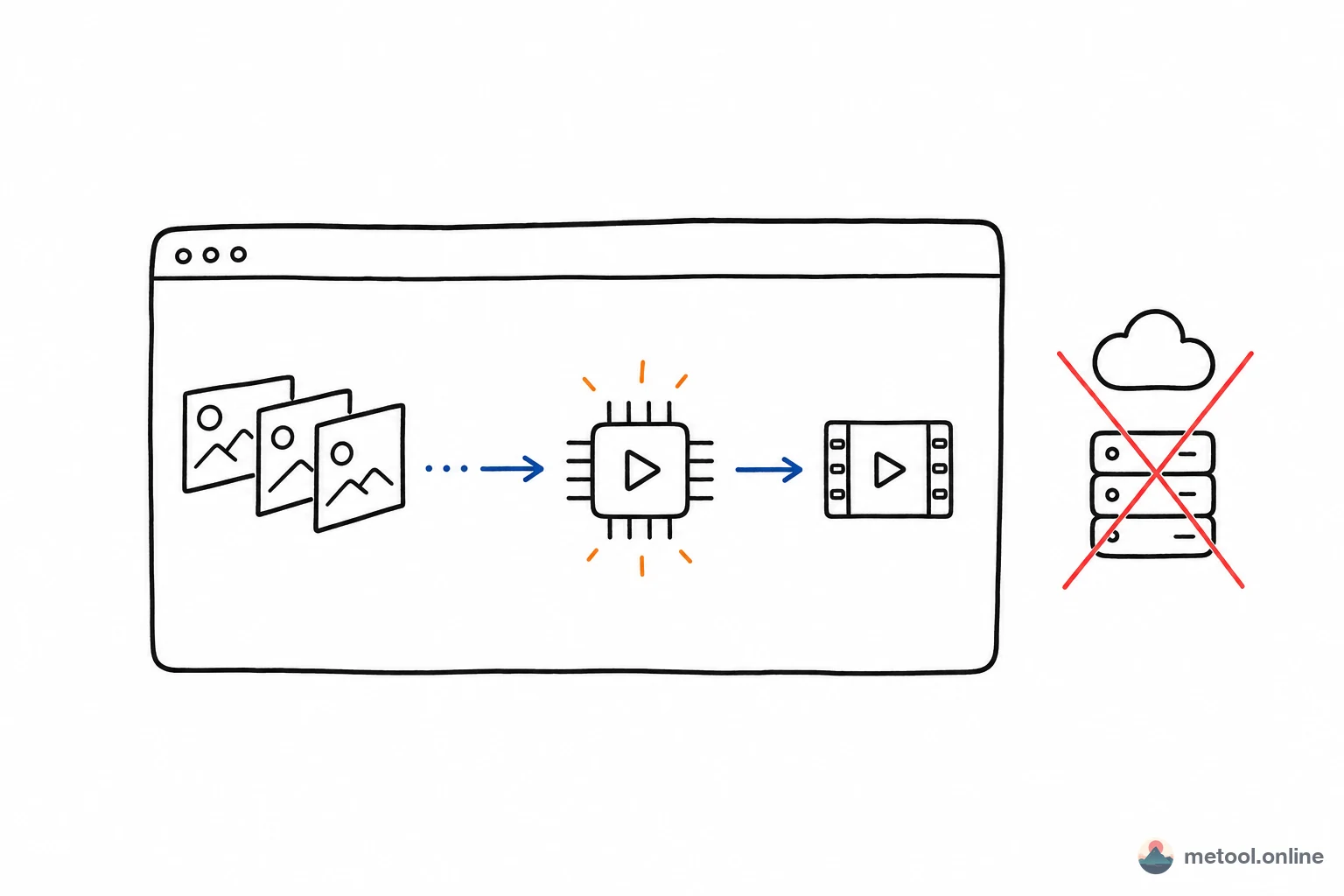
MeTool's Video Format Converter focuses on converting between MP4, MOV, and M4V. These three formats share compatible underlying codecs (H.264/AAC), enabling browser-native WebCodecs hardware acceleration for instant conversion — no software installation required.
Typical use cases: iPhone MOV → universal MP4, iTunes M4V → MP4 for sharing, MP4 → MOV for Final Cut Pro editing.
Key Features of MeTool Video Format Converter
MP4/MOV/M4V Specialized Conversion
Focused on cross-conversion between MP4 (.mp4), MOV (.mov), and M4V (.m4v). Covers the most common video format scenarios: iPhone recordings, iPad screen captures, iMovie/CapCut exports, and iTunes downloads.
WebCodecs Hardware Acceleration
Uses browser-native WebCodecs API, leveraging your device's GPU for transcoding. Faster and more energy-efficient than traditional FFmpeg approaches — conversions typically complete in seconds.
Three Quality Levels
Choose from high, medium, or low quality output. High quality preserves original visuals for quality-sensitive use; low quality produces smaller files perfect for messaging and email.
Browser-Based Secure Processing
All format conversion happens within your browser — video files never pass through any server. Whether it's work footage or personal memories, your data privacy receives the highest level of protection.
How to Convert Video Formats with MeTool
- Upload Video: Open MeTool's Video Format Converter page and drag-and-drop or select your MP4, MOV, or M4V file. Unsupported formats are automatically blocked with a prompt.
- Select Target Format: Choose your desired output from MP4, MOV, or M4V.
- Choose Quality Level: Select high, medium, or low quality. High quality is recommended for most cases.
- Convert & Download: Click Start Conversion. WebCodecs hardware acceleration completes the process, then download the converted video file.