Why You Need an Online Video Compressor in 2026
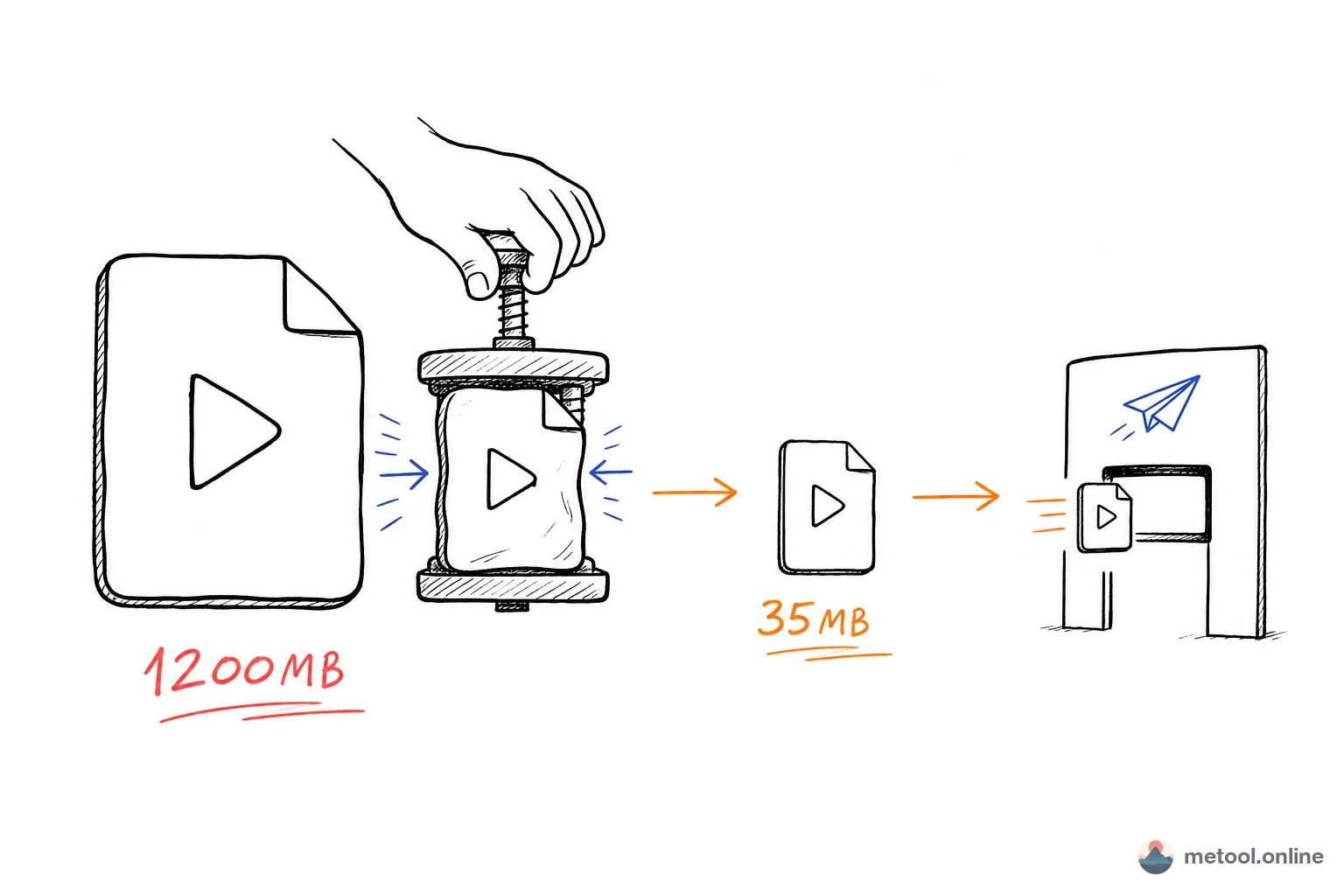
Large video file sizes are a constant headache for creators and everyday users alike. A 5-minute 1080P video can easily reach hundreds of megabytes, while 4K footage is measured in gigabytes. Whether you're sending files via messaging apps, uploading to social platforms, or attaching to emails, file size limits are an unavoidable obstacle.
In 2026, MeTool provides a fully browser-based video compression tool supporting MP4 (.mp4), MOV (.mov), and M4V (.m4v) — the most common formats from iPhones, iPads, and video editing software. Powered by browser-native WebCodecs hardware acceleration, no software installation needed. Compress videos down to 20% of their original size with visually lossless quality.
Choose from output resolutions (1080p/720p/480p/360p) and custom compression ratios. Ideal for messaging apps, email attachments, and social media uploads — achieving the perfect balance between file size and visual quality.
Key Features of MeTool Video Compressor
WebCodecs Hardware Acceleration
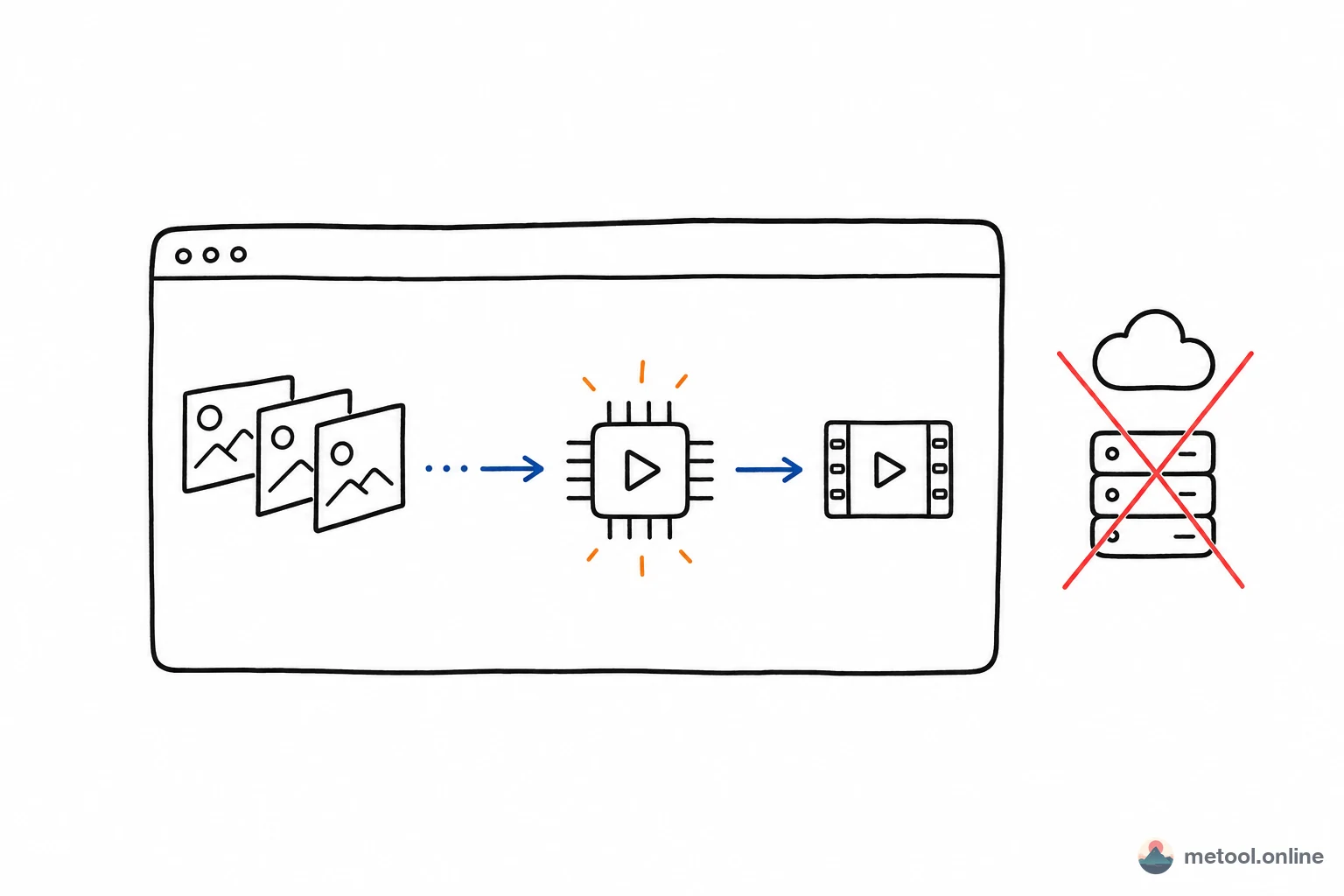
Uses browser-native WebCodecs API, leveraging your device's GPU for H.264 encoding. Faster processing and lower CPU usage than traditional software encoding, achieving an average 80% size reduction with visually lossless quality.
Supports MP4/MOV/M4V
Accepts MP4 (.mp4), MOV (.mov), and M4V (.m4v) — iPhone recordings, iMovie/CapCut exports, and iTunes M4V files can all be compressed directly. Output is highly compatible MP4 (H.264), playable on any device and platform.
Flexible Resolution & Compression Ratio
Choose from 1080p, 720p, 480p, or 360p output resolutions, plus a 10%–90% compression ratio slider for precise file size control.
Privacy & Security
All video processing happens entirely in your browser. Video files are never uploaded to any server. Your personal videos, work recordings, and private footage remain safely on your local device at all times.
How to Compress Videos with MeTool
- Upload Video: Open MeTool's Video Compressor page and drag-and-drop MP4, MOV, or M4V files into the upload area. Unsupported formats are automatically blocked with a prompt.
- Adjust Compression Settings: Select output resolution (1080p/720p/480p/360p) and enter a compression ratio. Lower values produce smaller files with more quality trade-off.
- Start Compression: Click the compress button. The browser uses WebCodecs hardware acceleration, with a progress bar showing current stage and completion percentage.
- Download Result: Once complete, compare before/after file sizes and click download to save the compressed MP4 video.
Video Compression Settings: Which Resolution and Ratio to Choose
Picking the right settings has a huge impact on the final result. Here's a practical guide by use case:
Sending via messaging apps (WeChat, WhatsApp, Telegram): Most apps cap video size at 16–100MB. Drop to 720p and a compression ratio of 40–50%. A 3-minute iPhone video (typically 300–600MB in MOV) compresses to well under 50MB while remaining crisp on a phone screen.
Email attachments: Email servers typically enforce a 25MB limit. Use 480p with a 30–40% ratio — a 5-minute clip fits comfortably. If quality matters, 720p at 40% usually stays under 25MB for clips under 3 minutes.
Social media uploads (Instagram Reels, TikTok, YouTube): These platforms re-encode your video anyway, so sending an unnecessarily large file just wastes upload time. 1080p at 60–70% keeps quality high enough that platform re-encoding won't visibly degrade the output.
Archiving or sharing full-length recordings: 720p at 50% is a solid all-purpose setting. You'll typically see 75–85% size reduction with quality that's nearly indistinguishable from the original on any consumer display.
Quick previews or rough cuts: 480p at 30% — fastest compression, smallest output. Useful for sending a "does this clip work?" rough cut before committing to a full export.
Browser Video Compression vs. Desktop Software: What to Know
Handbrake, FFmpeg, Adobe Media Encoder, DaVinci Resolve — dedicated video encoding tools offer enormous control. So when does the browser alternative make more sense?
No install, works everywhere: Handbrake and FFmpeg require installation and, for non-technical users, a steep learning curve. MeTool opens in any browser tab — on macOS, Windows, Linux, or a Chromebook. No codec packs, no environment variables, no command-line flags.
Hardware acceleration without setup: MeTool uses WebCodecs, which taps the same GPU hardware encoder that Handbrake uses under the hood. You get hardware-accelerated H.264 encoding without configuring anything — just drag in the file and press compress.
Files never leave your device: Cloud-based video compressors (many free tools online) upload your footage to their servers for processing, raising obvious privacy concerns for work recordings, personal content, or footage involving other people. MeTool processes everything in the browser — the video data is never transmitted anywhere.
Where desktop tools still win: Complex multi-pass encoding, batch processing hundreds of files unattended, codec options beyond H.264 (HEVC, AV1, VP9), or frame-accurate chapter/chapter metadata editing — these are still the domain of dedicated encoders. For the everyday task of "shrink this video so I can send it," the browser tool covers the vast majority of cases without any friction.