AI can write Mermaid without drawing the diagram right — legal syntax only guarantees a render; arrows and layers have to be judged on the preview. Do not let the model “draw another one” and finish alone in chat. Have it replace only the broken stretch; you talk from the picture.
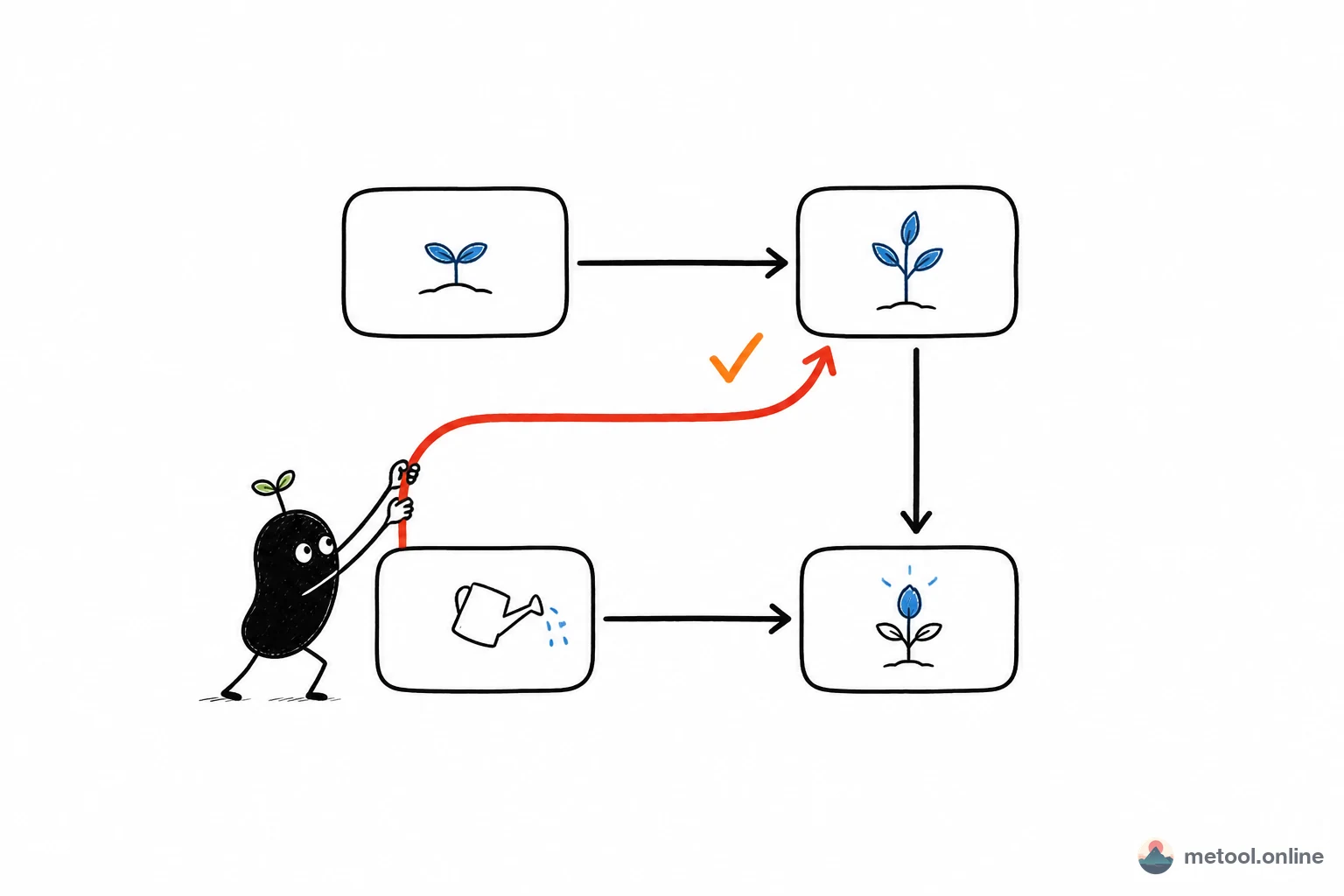
Why do AI flowcharts often “run” but still look wrong?
Because a large model first guarantees source that parses, not a layout a human can read. Mermaid and PlantUML let an algorithm pick coordinates. How many crossings, whether layers line up — you only know after render. A code block that looks tidy in chat is the illusion of a monospace font.
Business descriptions have gaps too. You say “from topic to publish,” and the model invents a review node you never mentioned, or draws parallel “design / engineering” as one line. Regenerating the whole chart from a new sentence can also reshuffle the left half you already placed. The three-stage pipeline (parse — layout — render) is in What diagram-as-code is doing. This article only covers “the diagram is already wrong — how do I change it.”
A frequent syntax trap: labels with spaces, colons, or non-ASCII often need English double quotes, and models forget. When the page shows a render error, fix syntax before structure.
How do I change only the broken stretch against the preview?
Open a Mermaid page with a live preview, let your current AI read and write diagram.mmd on that page, and point at a node name or step number — do not say “redraw.” Open Mermaid diagrams, turn on Connect your AI, keep the tab open.
One round can look like this — AI speeds node edits; you judge whether the business flow is right on the render:
You:
Draw the flow from topic to publish. Step 3 should be human review. Do not chain design and engineering as one line. Write it to the current page; do not emit an image in chat.
Assistant:
Written to diagram.mmd. The preview is Topic → Outline → Human review → Draft → Publish. Check arrows and layers — if a step is wrong, name the node and I will only change that stretch.
Do not imagine whether the diagram is right — chat on the left, an arrow to the Mermaid page on the right, the flowchart already showing the human-review step:
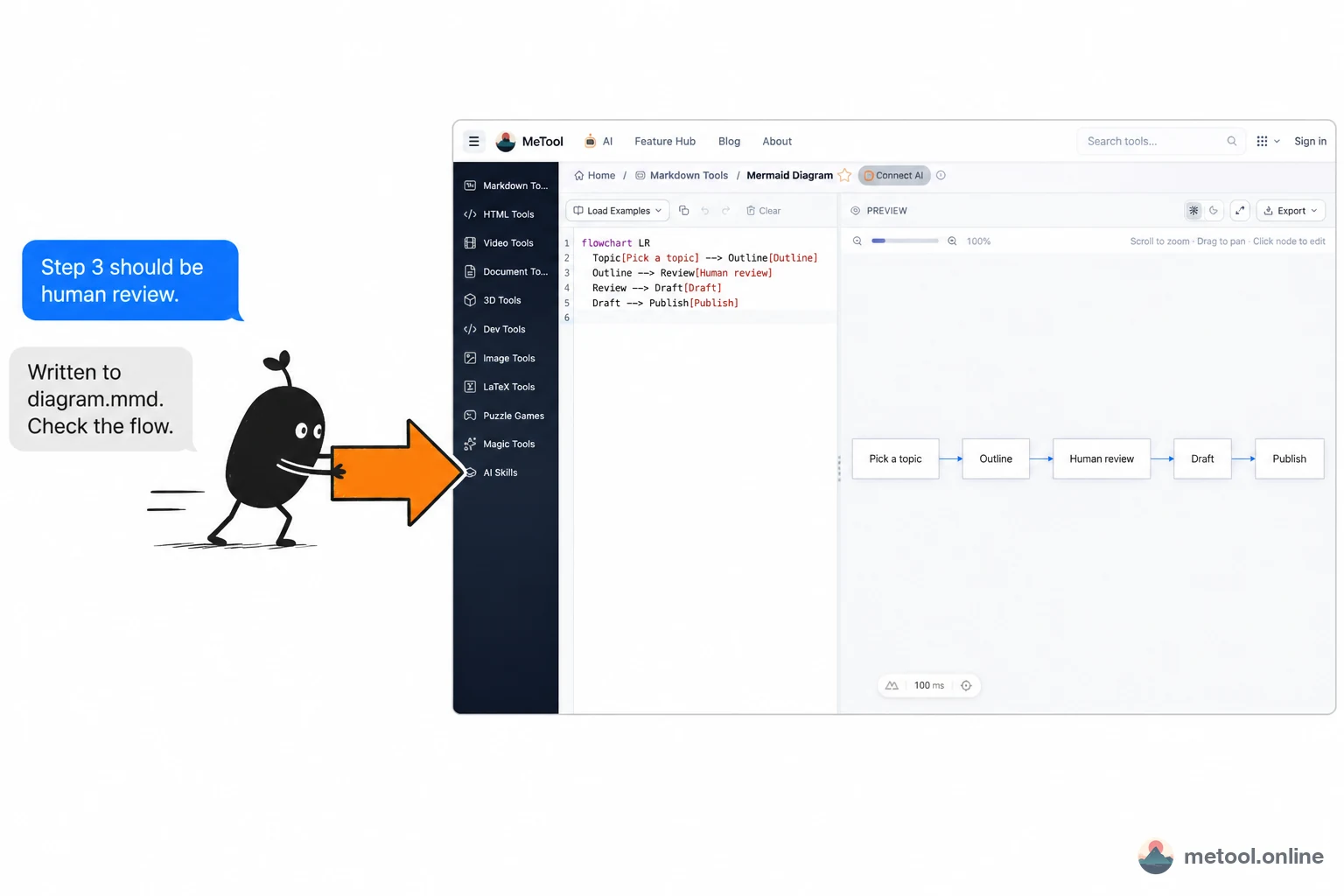
If one arrow wraps the wrong way, say “only this arrow,” not “draw the whole thing again.” Cowriting here means the diagram is still alive in the preview and you can still intervene. Setup: Connect your AI. Concept: What is human–AI cowriting?.
When syntax is illegal, the page shows a render error — paste the error text back and say “fix syntax only; do not change the business flow.” You can also say:
- “Rename the subgraph to Publish and keep only review and go-live inside it.”
Before export, have the assistant list SVG / PNG / JPG; you pick one, then trigger the browser download. Prefer SVG for vector work and slides; PNG when the editor cannot take SVG. Do not download all three by default.
Which diagrams belong in Mermaid, and which do not?
Diagrams whose relations are clear, and whose positions you will let an algorithm pick, belong in Mermaid. Diagrams that need exact placement belong on a manual canvas.
| Diagram type | Better fit | Why |
|---|---|---|
| Flow, sequence, ER, class, Gantt, pie | Mermaid + preview iteration | Nodes and edges can be named |
| So many nodes that crossings are unreadable | Split into two diagrams, or switch to a manual canvas | Auto-layout will not save density |
| Posters, infographics, pixel-aligned architecture comps | A drawing tool | Coordinates have to be human-set |
| A quick process for a teammate | Mermaid export as PNG | No design file needed |
| Architecture notes that must diff in git | Keep the .mmd source |
Text is reviewable |
After an engine or layout-library upgrade, the same source can place nodes differently. That is auto-layout, not this page breaking. For diagrams you publish, archive a bitmap or SVG when you freeze the design; do not assume source will always be pixel-reproducible.
Boundaries: one page at a time; close the tab and the assistant cannot keep editing. Very dense diagrams can slow browser layout — split them rather than asking the model to pile on nodes. AI speeds “change this arrow.” It does not decide whether the business flow is right.
Wrap-up
AI flowcharts split into two questions: does the source parse, and can a person read the diagram. Keep diagram.mmd in a live preview. Fix syntax against the error; fix structure against the nodes. Letting the model “draw another one” alone in chat looks cheaper; what you lose is the half you already placed.